Help Center
Documentation
Tutorial
Creating and Managing Exams
This tutorial explains how to create and manage certification exams using the NDT Certify platform. You will learn to navigate the system and configure exams for your organization.
0:00 / 0:00 • Introduction
Step-by-step guide
- 01
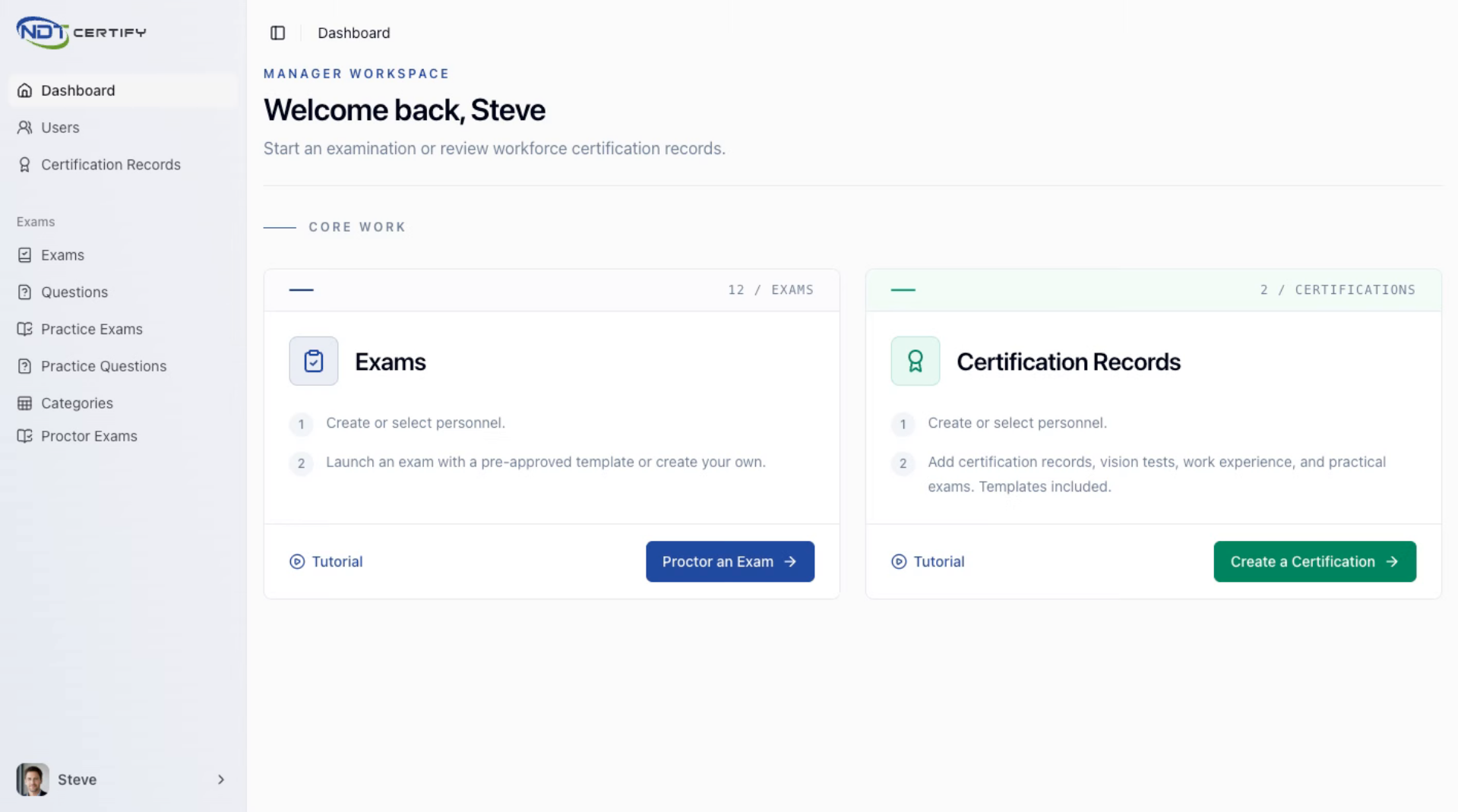
Begin Exam Creation Process
Let's begin by creating an exam within the NDT Certify platform to manage certification assessments effectively.
- 02
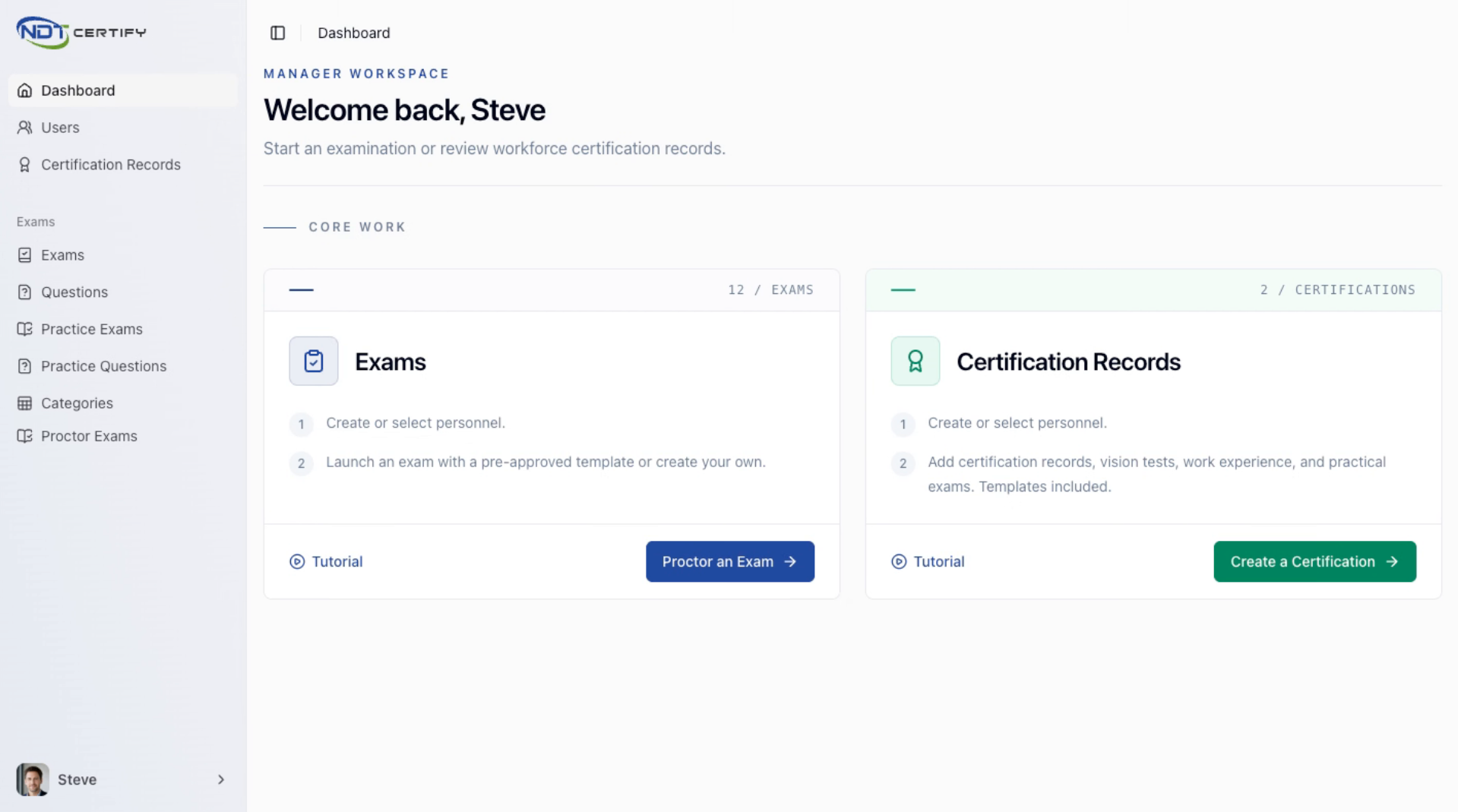
Navigate to Exams Section
Navigate to the exams link in the left navigation menu to access the list of available exams in NDT Certify.
- 03
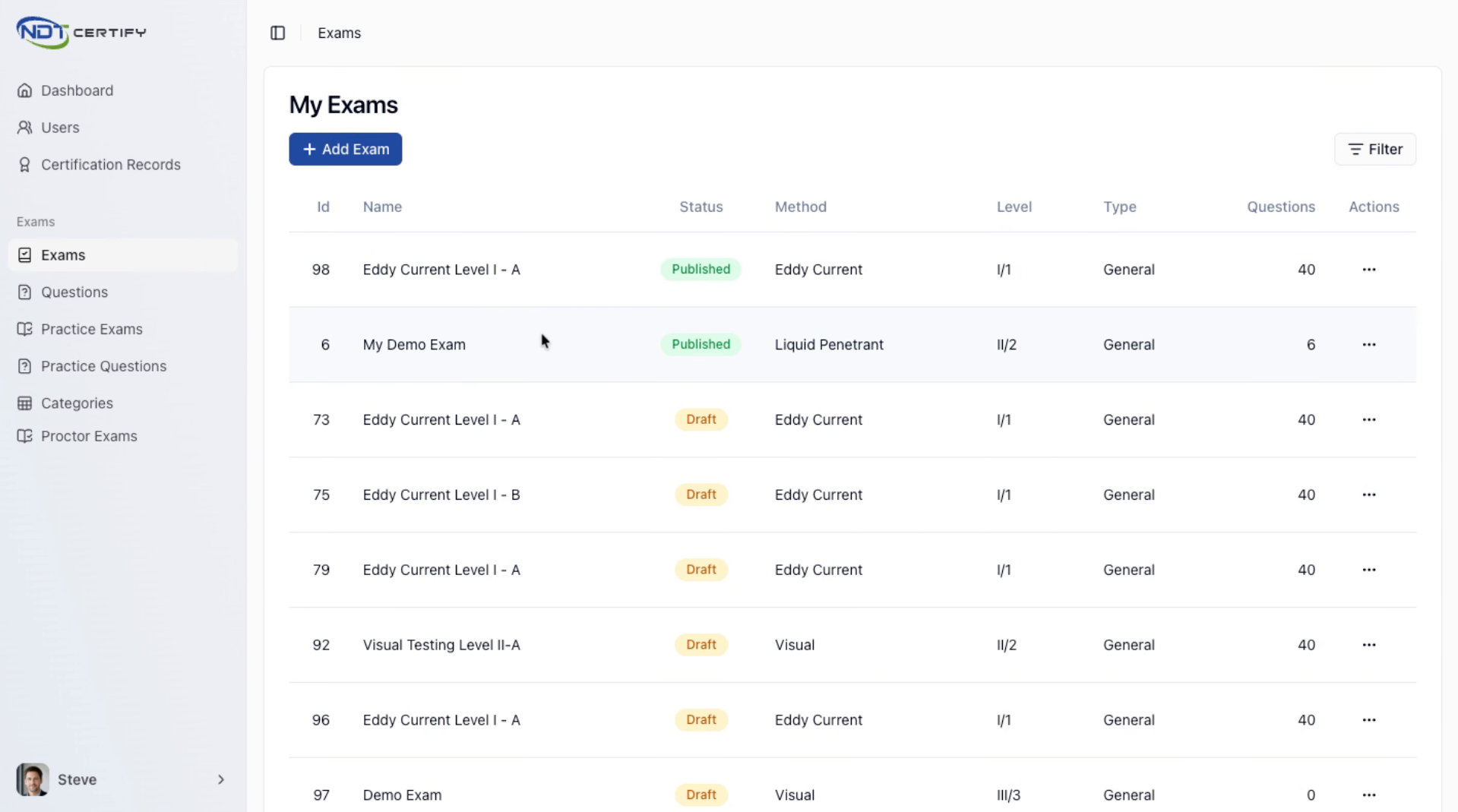
Review Existing Exams List
View the list of exams that have been created or added, including drafts and published exams within your organization.
- 04
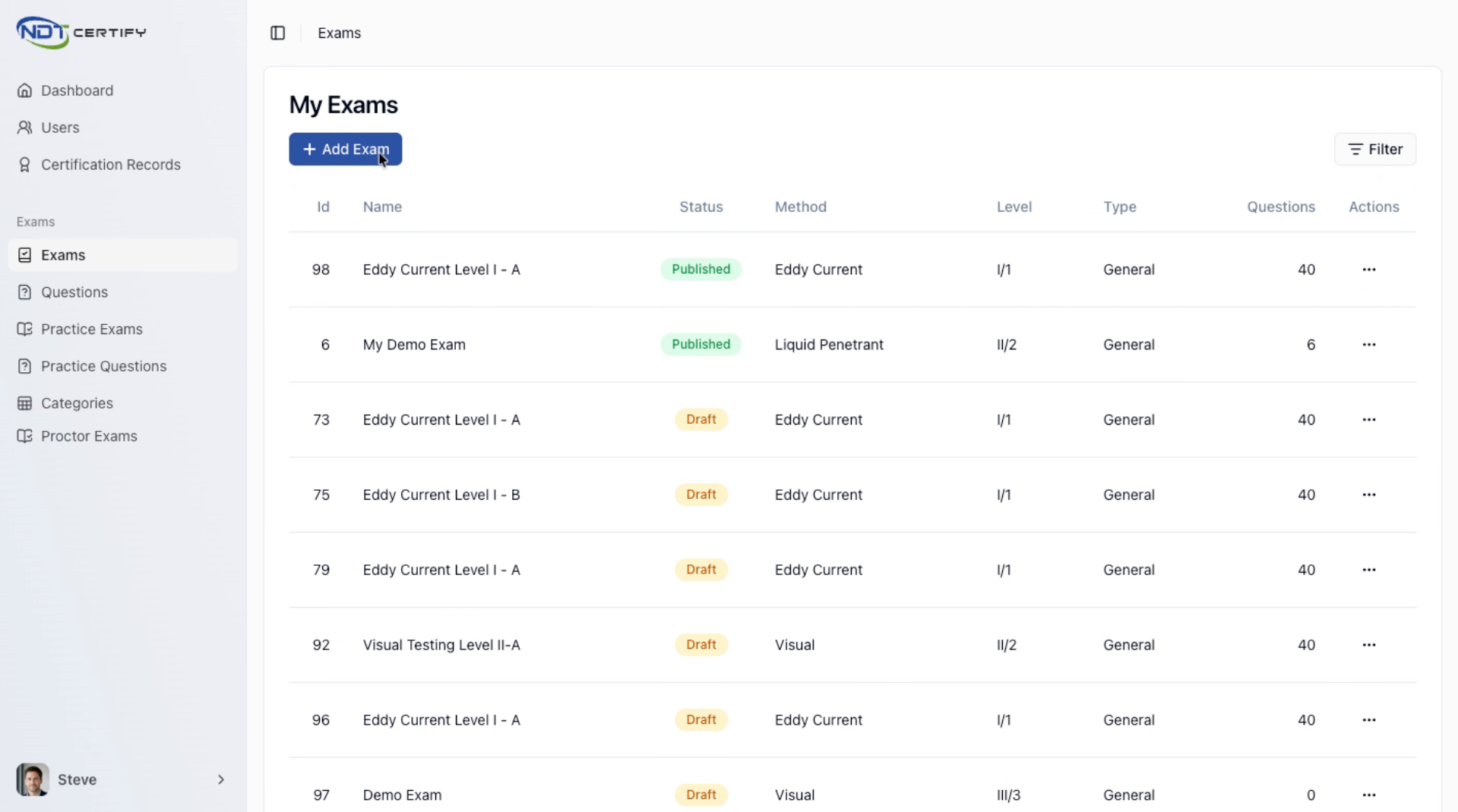
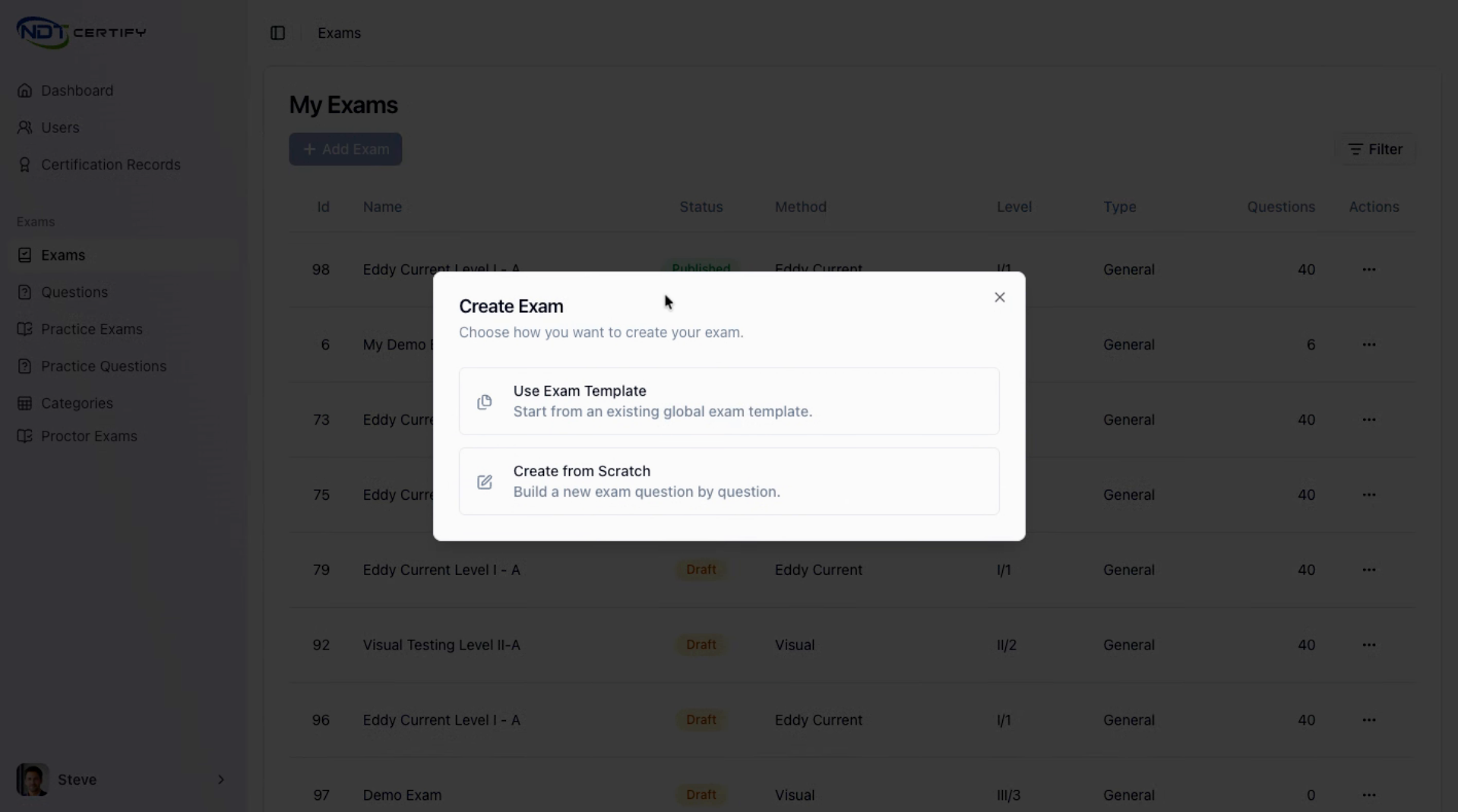
Add a New Exam
Click the Add Exam button to start creating a new exam in the system.
- 05
Select Exam Template Option
Choose to use an existing Level 3 approved template or create a new exam from scratch; here, select an existing template.
- 06
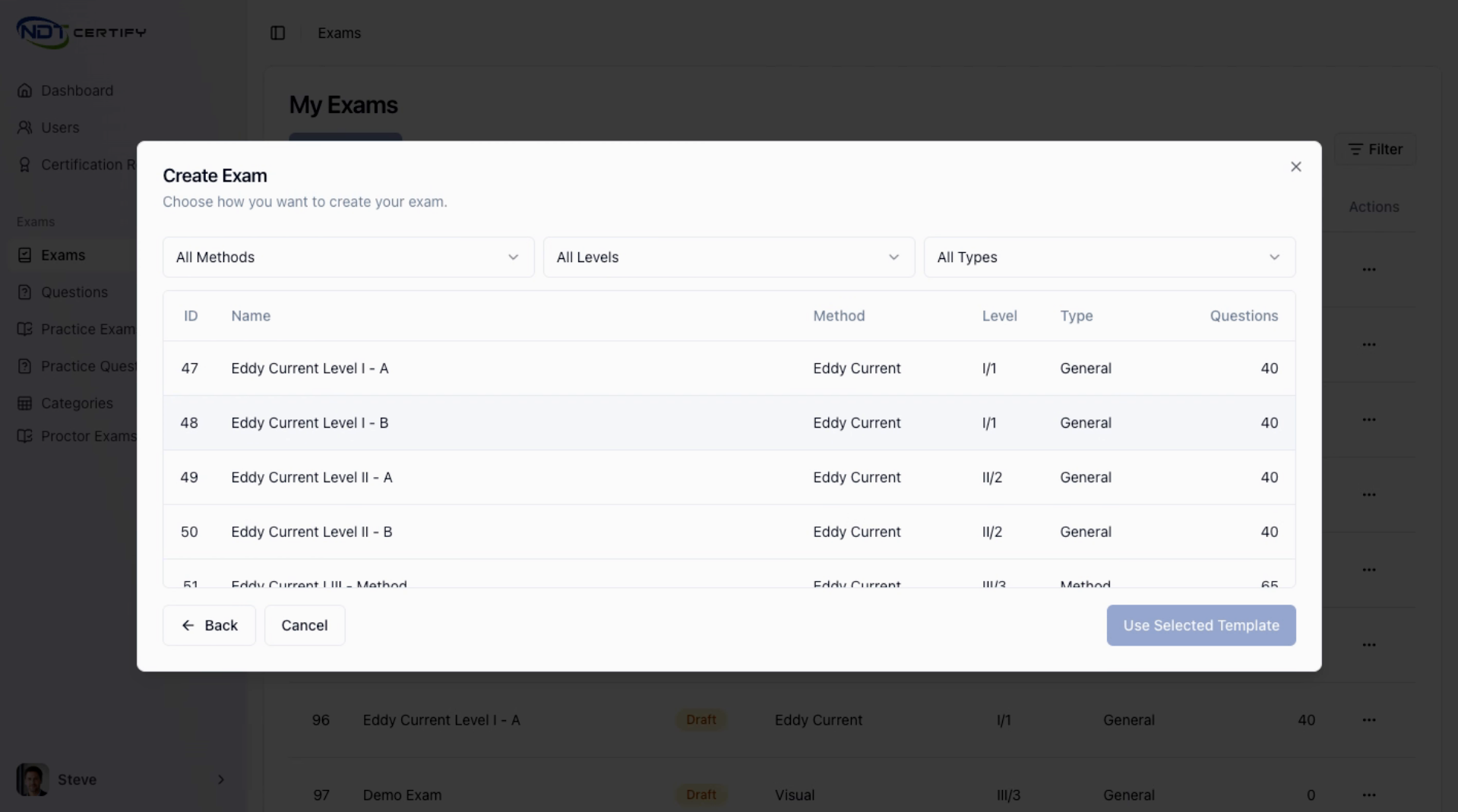
Choose Method and Level
Select the desired method and level from the list, then click Select Template to confirm your choice.
- 07
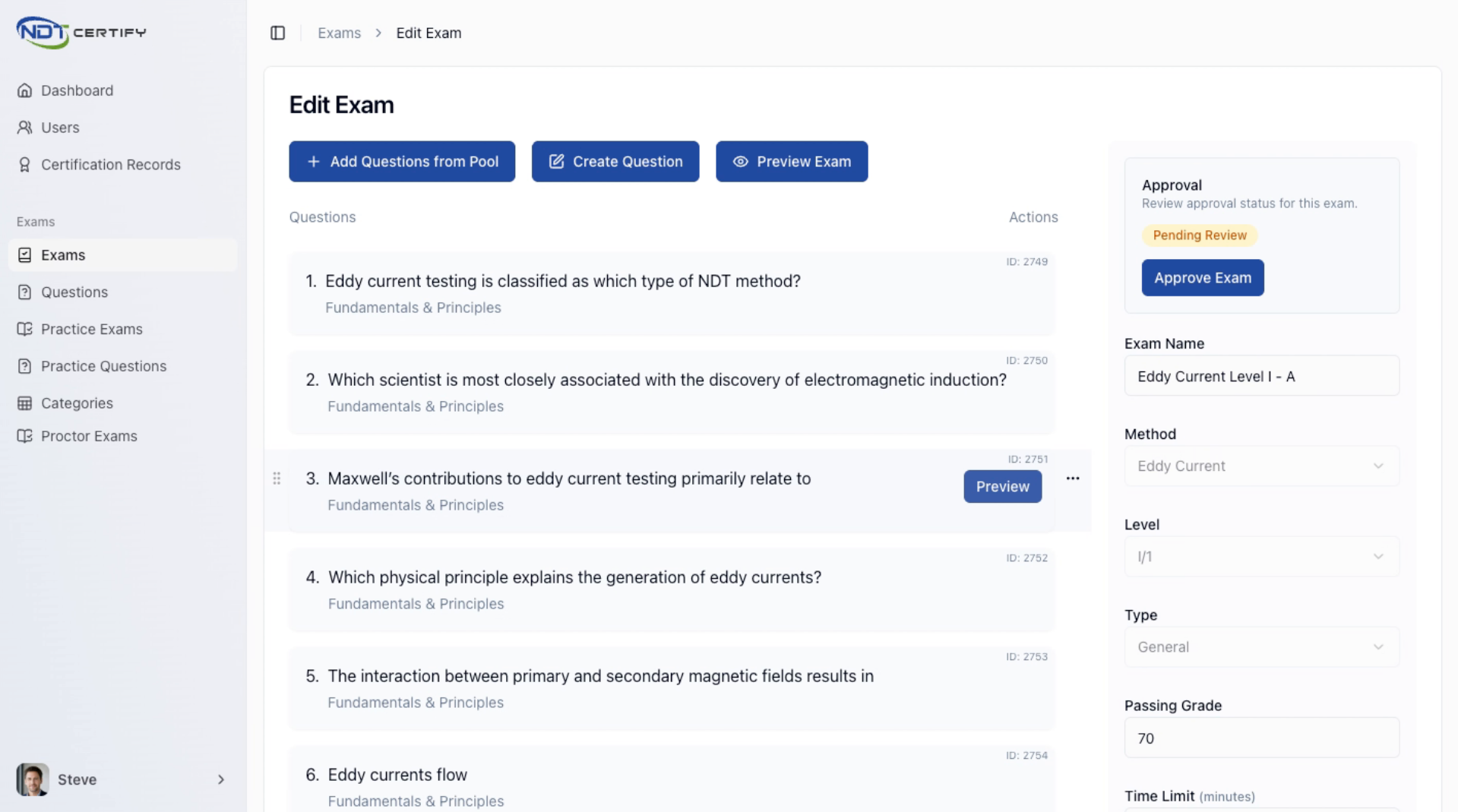
Edit Exam Questions
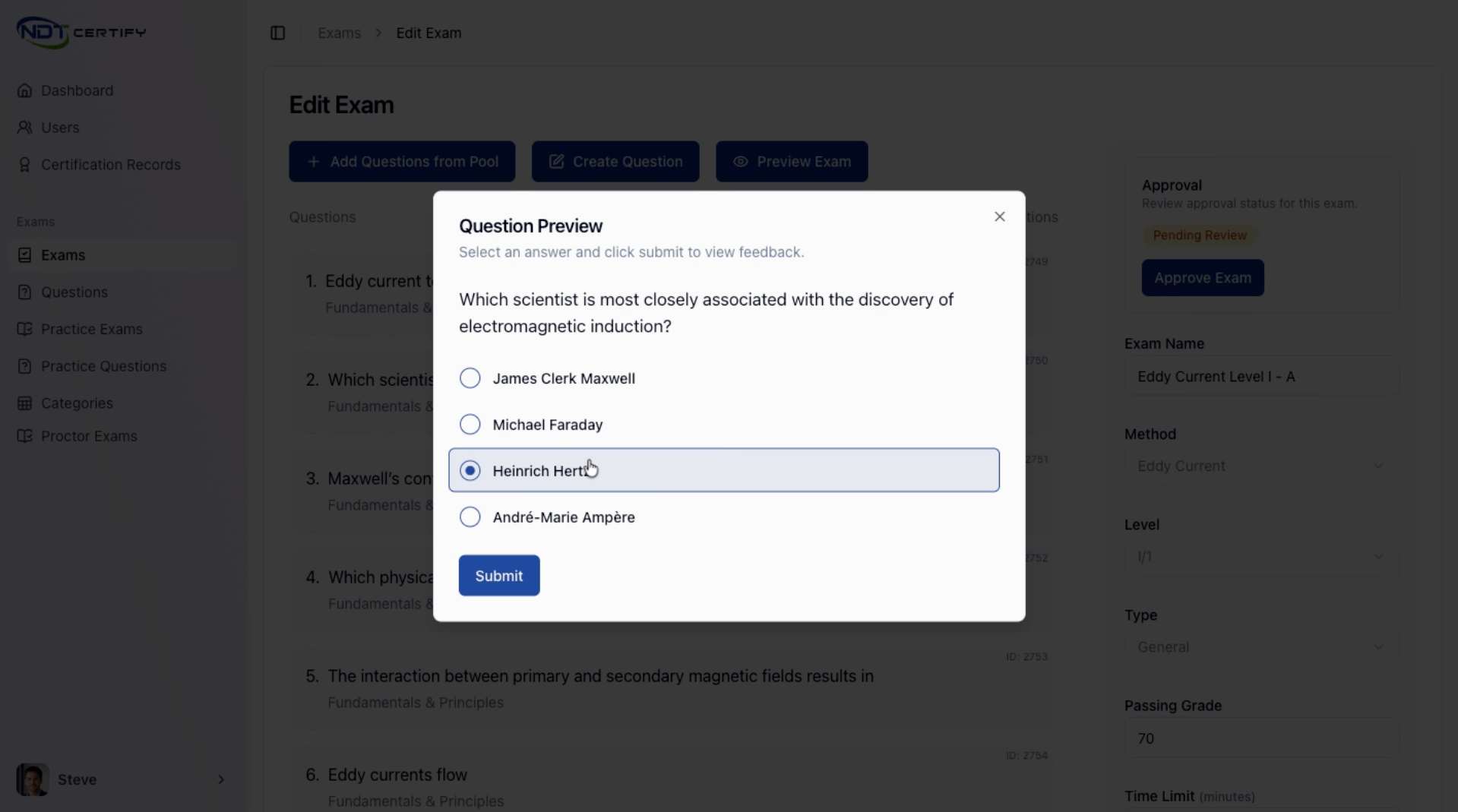
On the edit exam page, review the list of approved questions and preview individual questions for more details.
- 08
Add Questions from Pool
Add additional questions to your exam by selecting them from the question pool available within the platform.
- 09
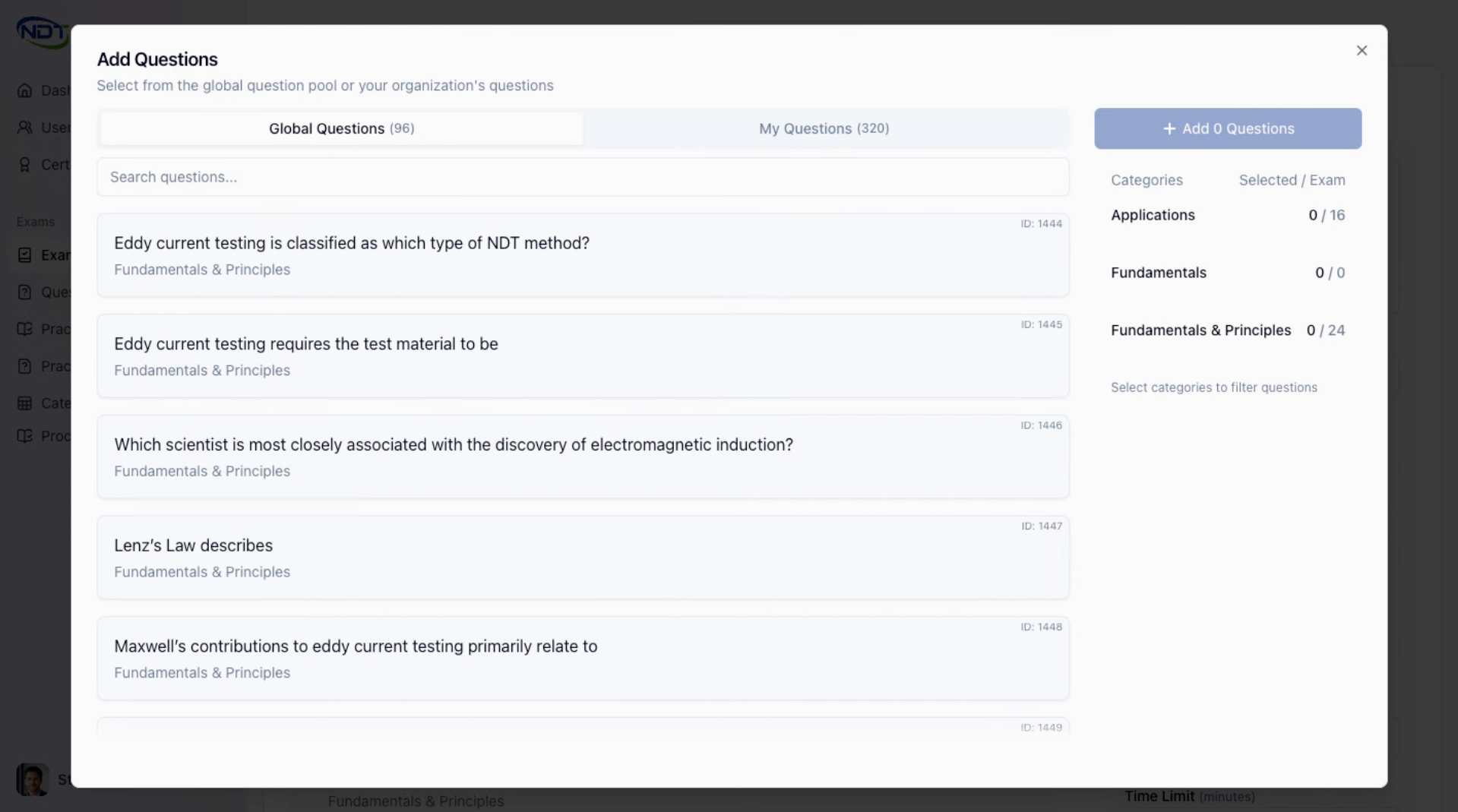
Understand Question Pool Structure
The question pool includes global questions provided by the system and your own custom-created questions.
- 10
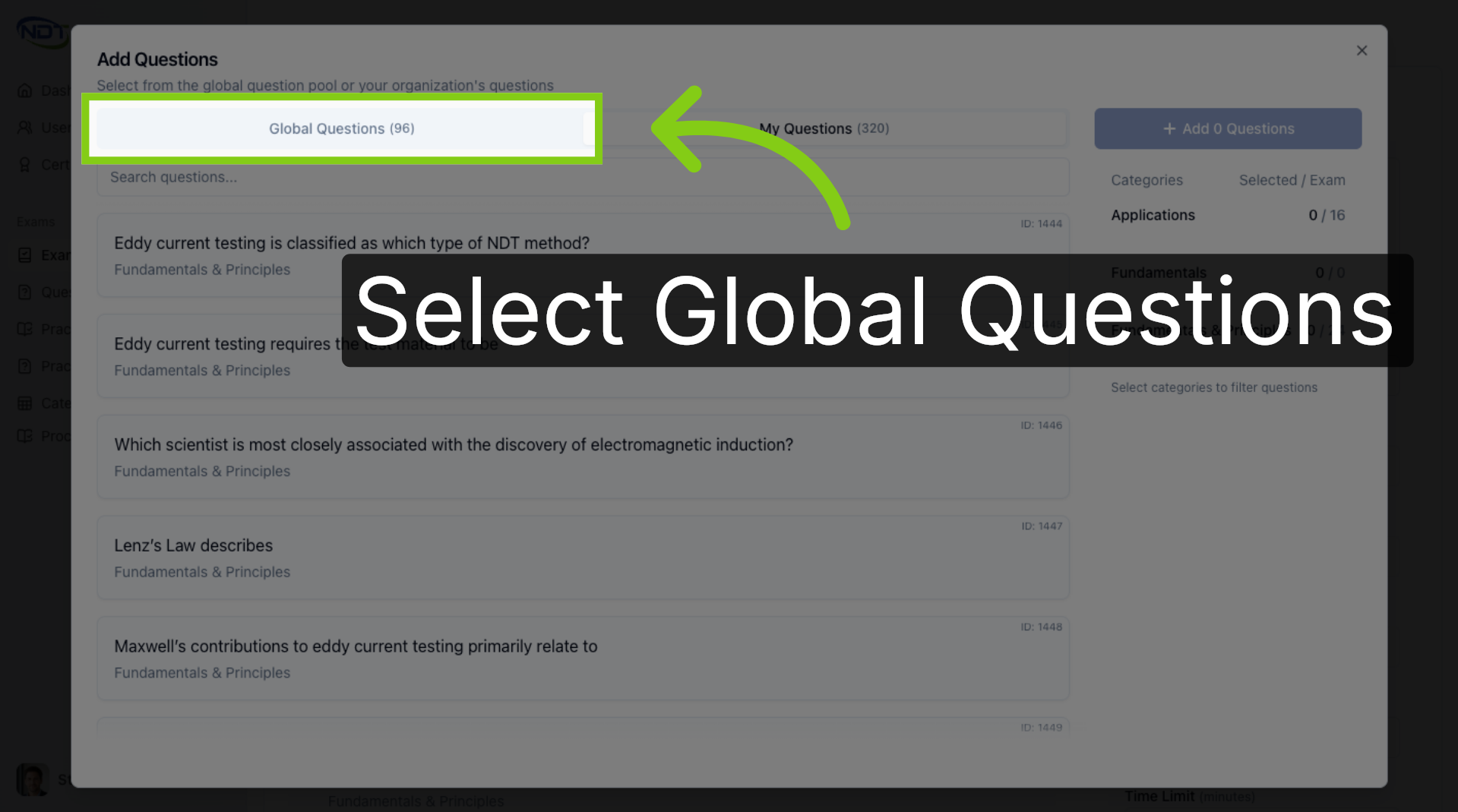
Access Global Questions
Open the Global Questions section to browse the system-provided questions available for your exam.
- 11
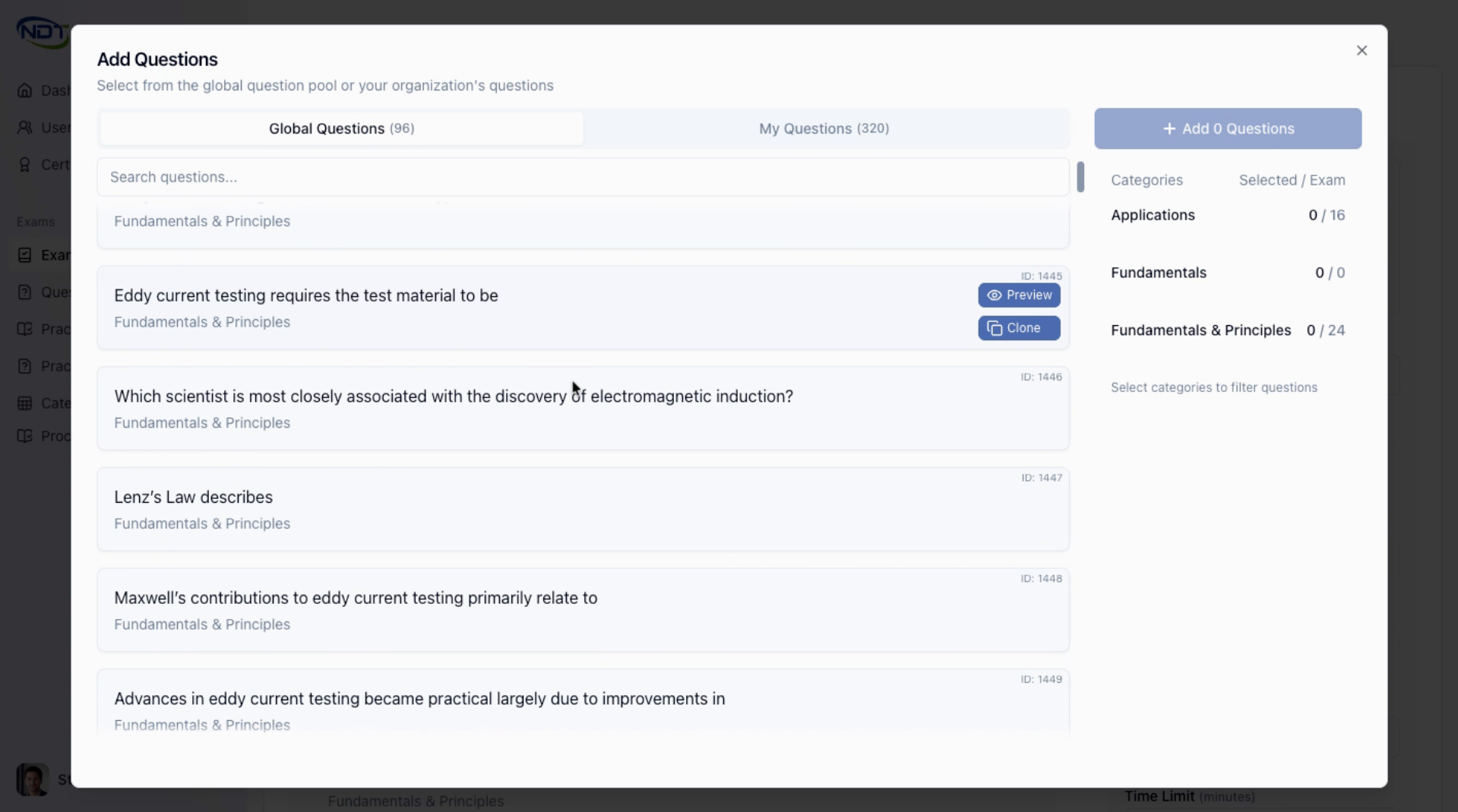
Clone Questions for Editing
Clone a question to add it to your exam and make any necessary changes or modifications before finalizing it.
- 12
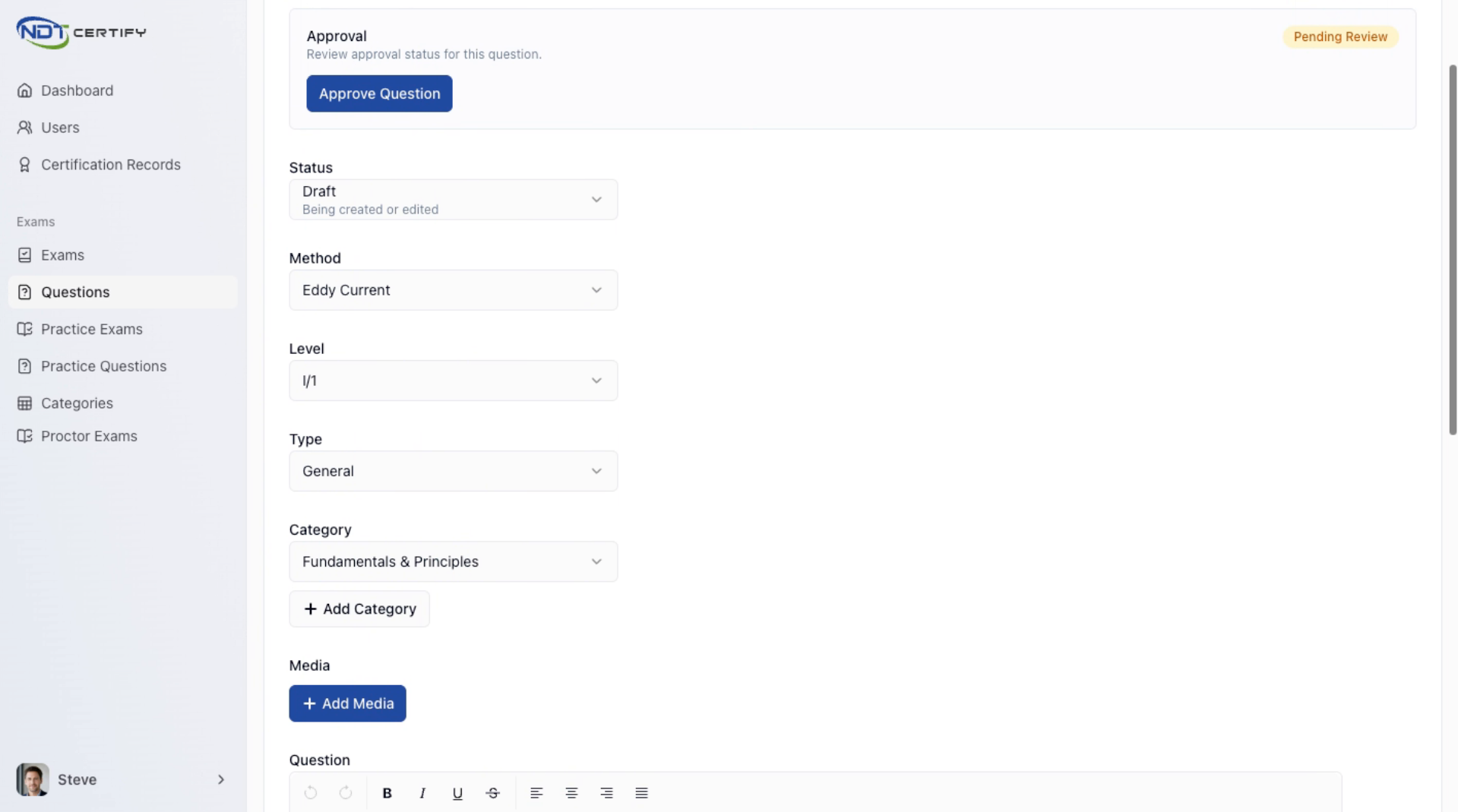
Edit and Approve Questions
Make edits to the cloned question as needed, then approve it to include it in your exam.
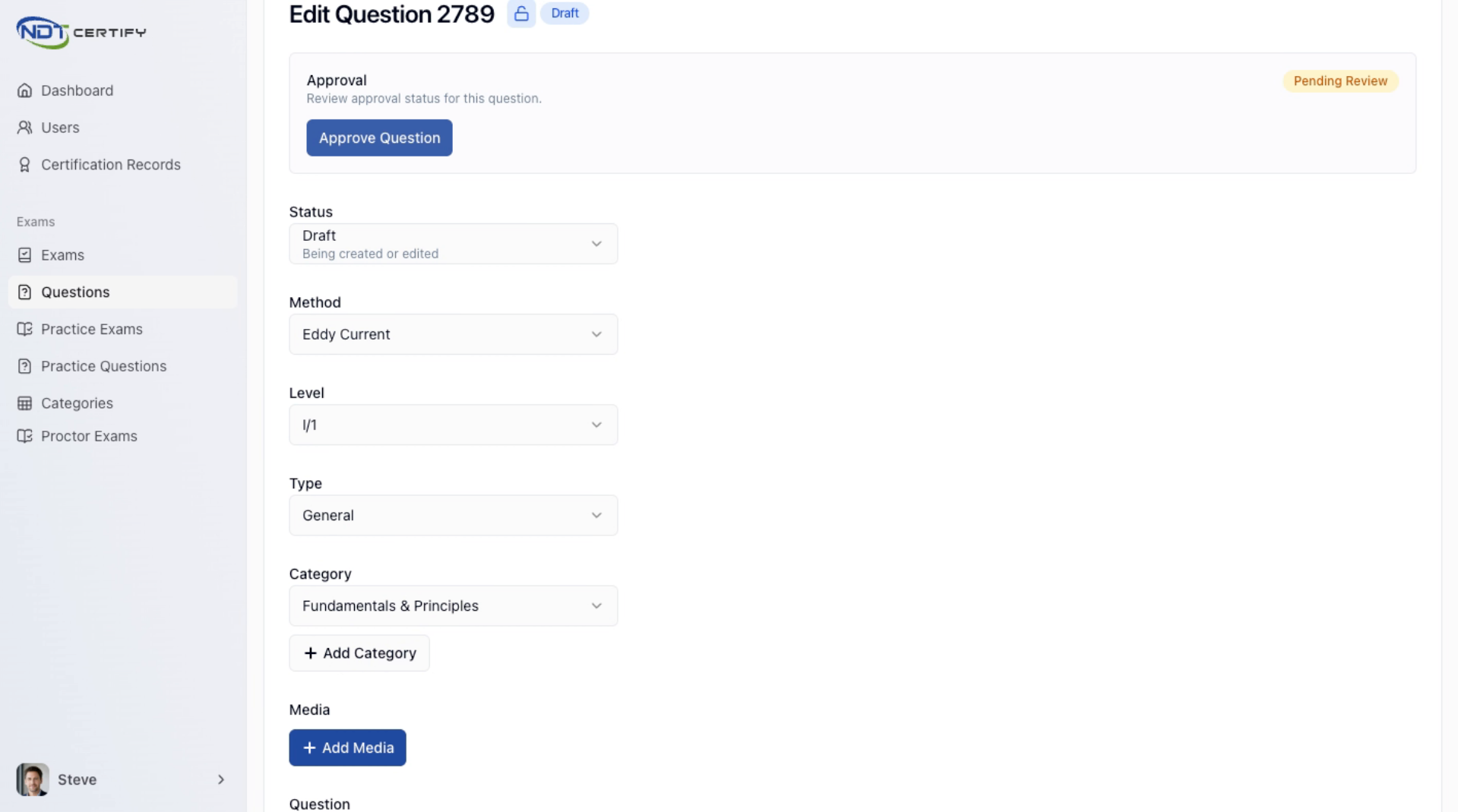
- 13
Set Question Status
Adjust the status of the question to reflect its current state within the exam creation process.
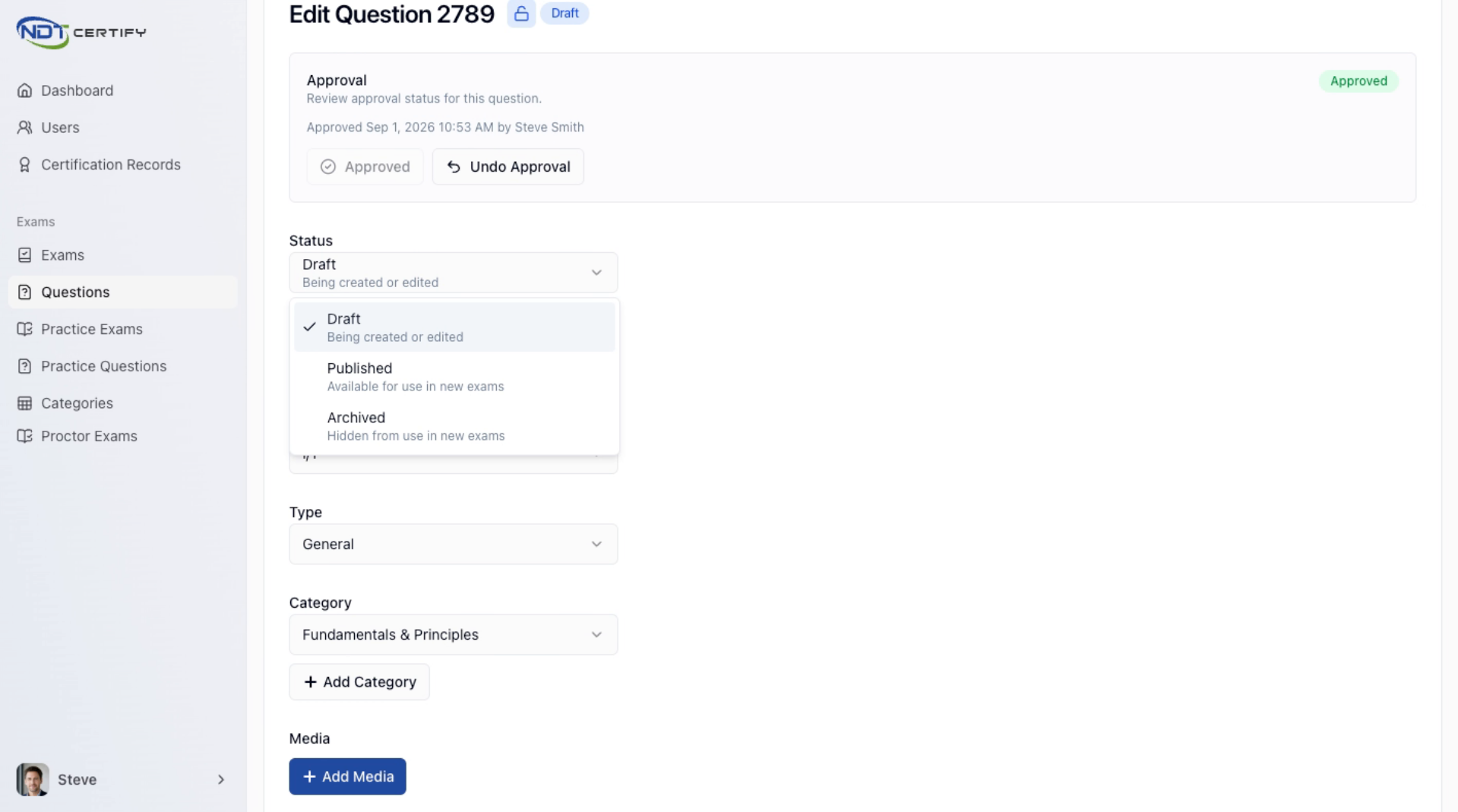
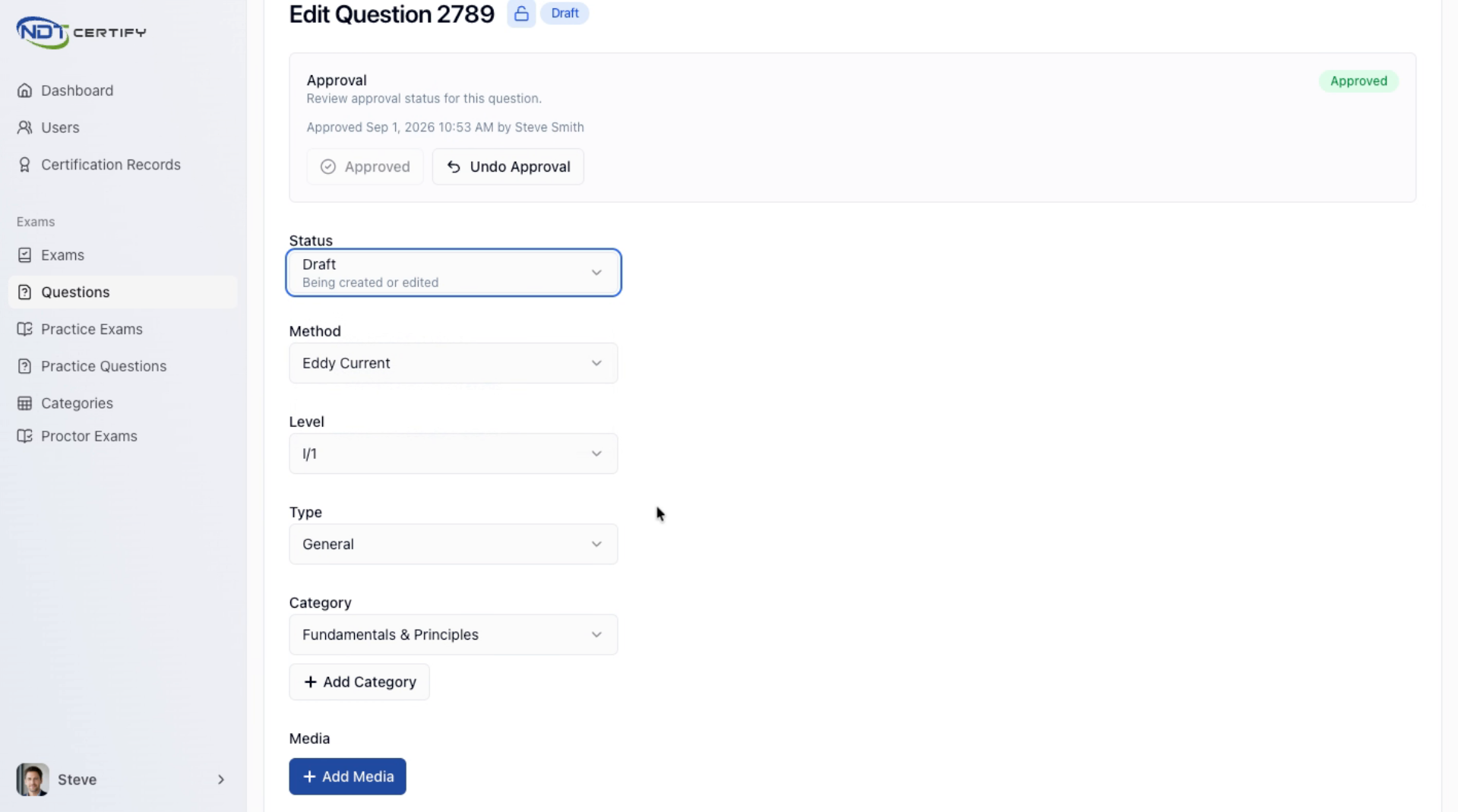
- 14
Publish Question to Pool
Publish the question to add it to your organization's exam question pool for future use.
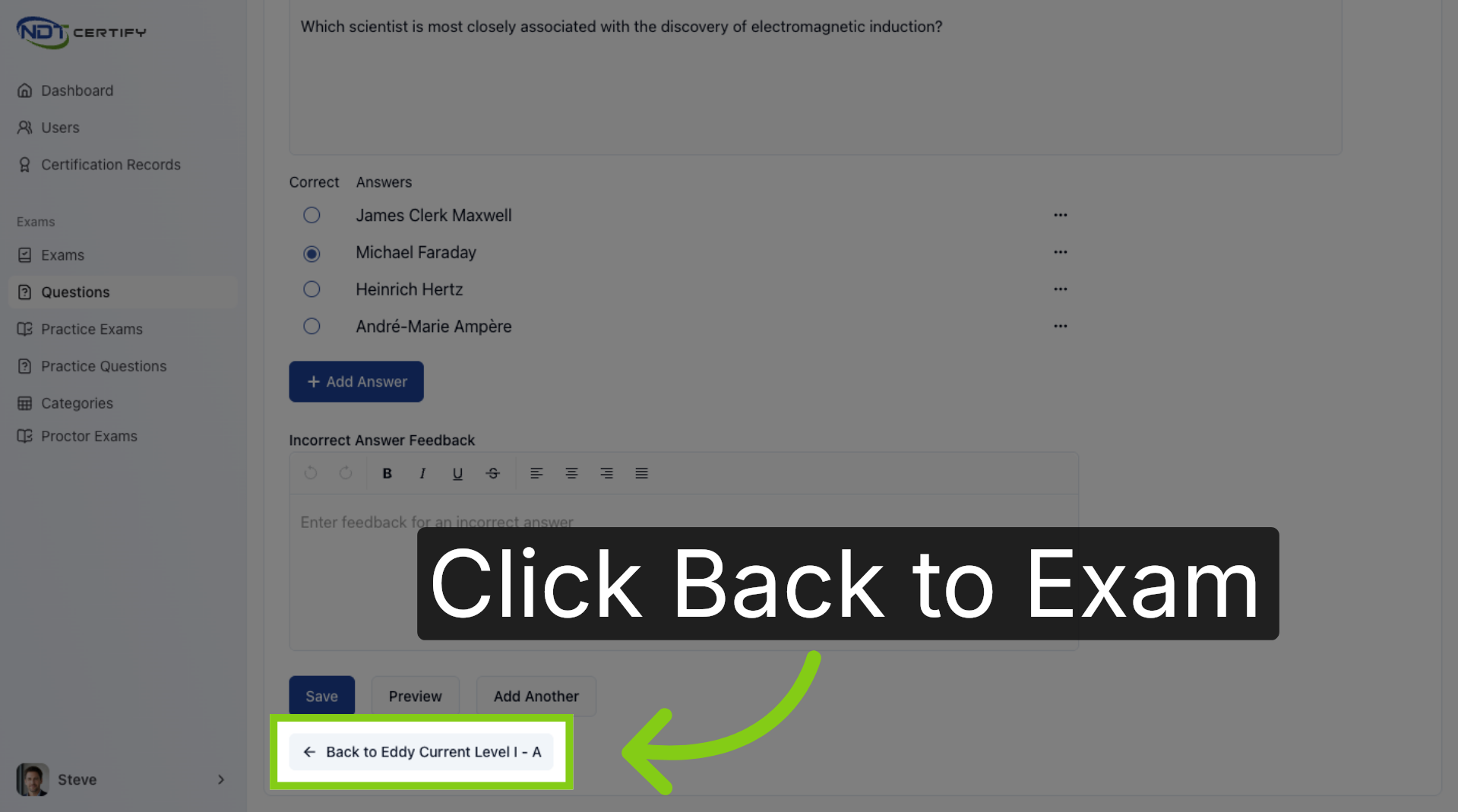
- 15
Save and Preview Exam
Once all questions and settings are complete, save your exam, preview it, or add another question as needed.
- 16
Return to Exam Overview
Navigate back to the main exam overview page to review the current exam details and settings.
- 17
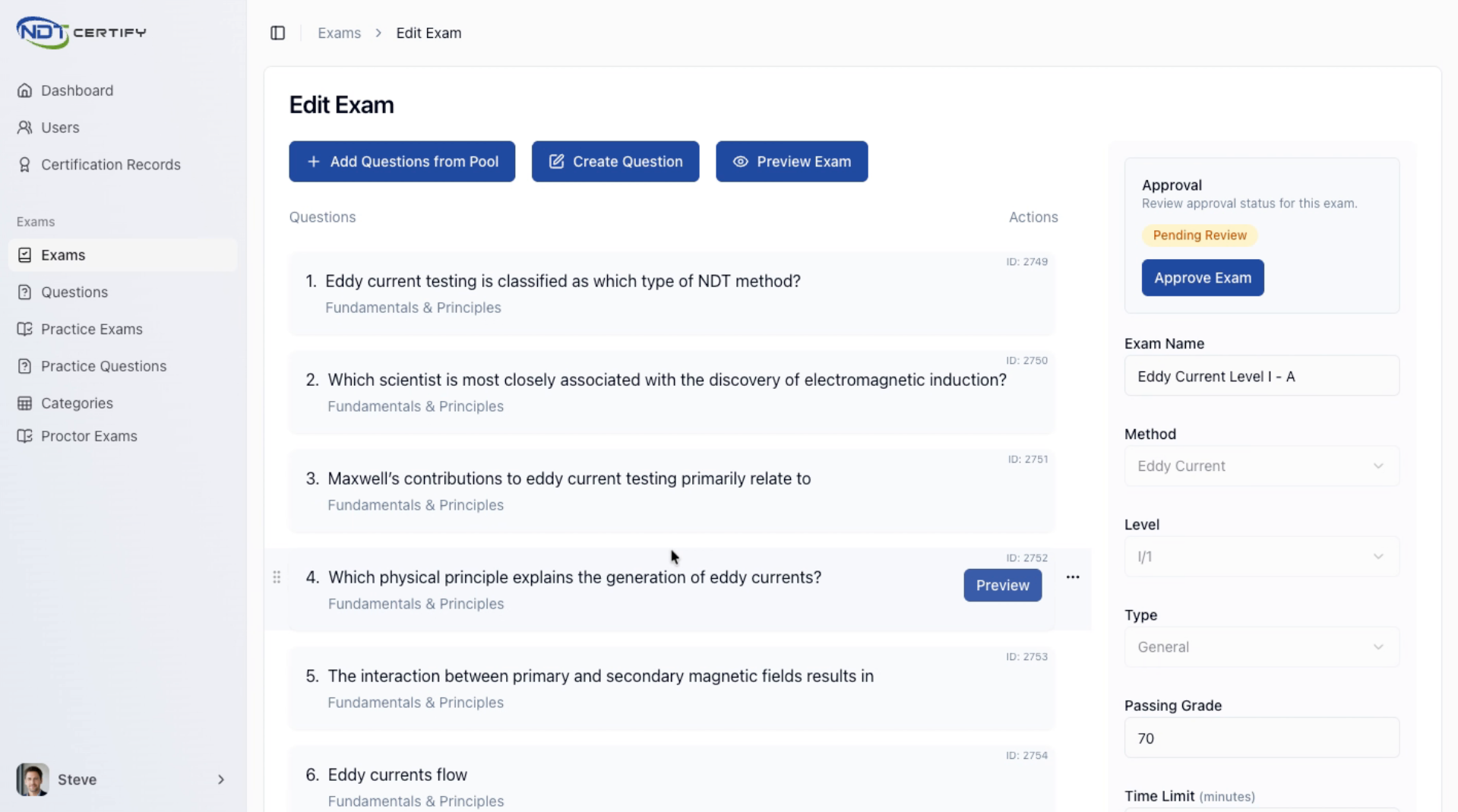
Modify Passing Grade
Adjust the passing grade requirement to set the minimum score needed to pass the exam.
- 18
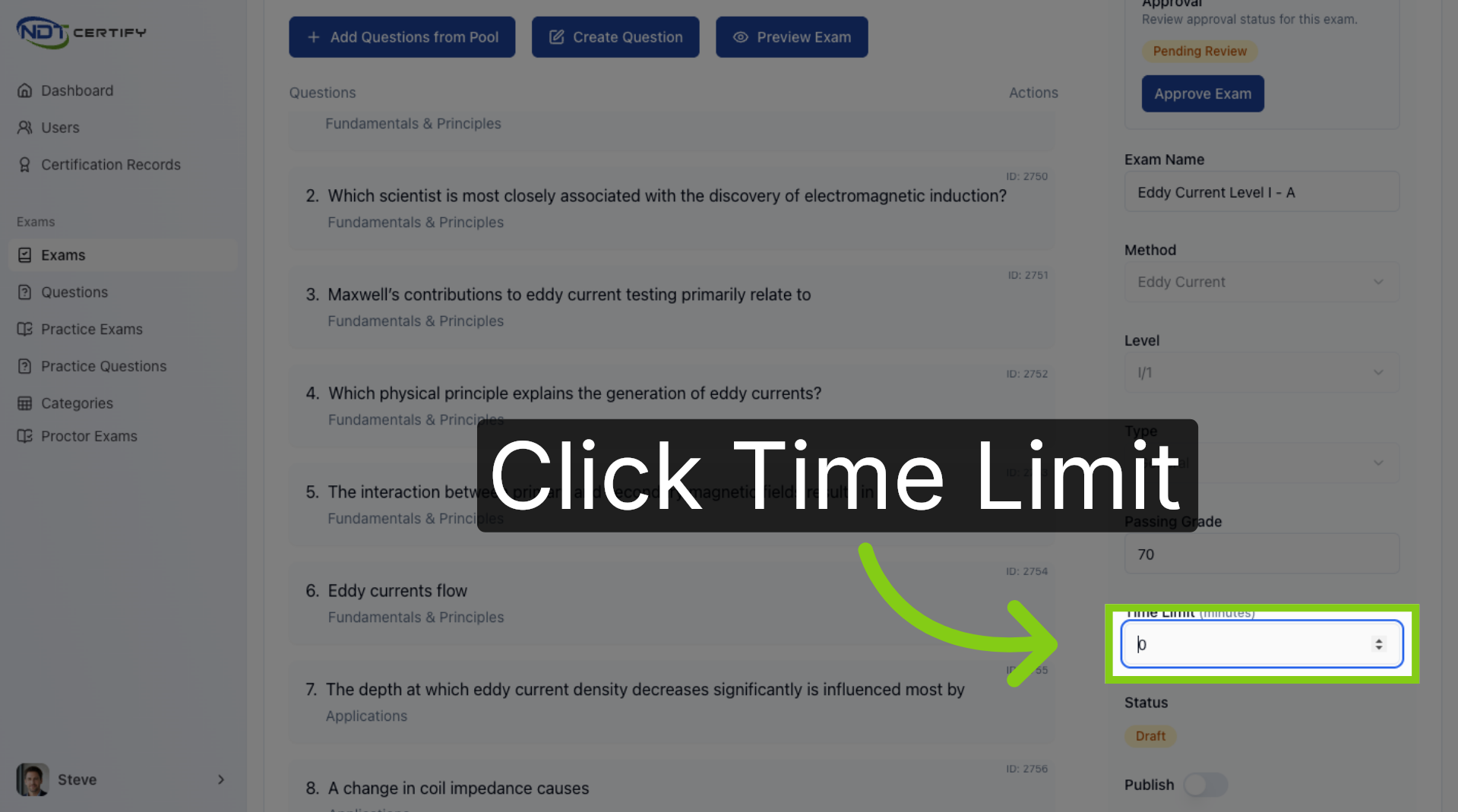
Access Time Limit Setting
Open the time limit field to configure the duration allowed for personnel taking the proctored exam.
- 19
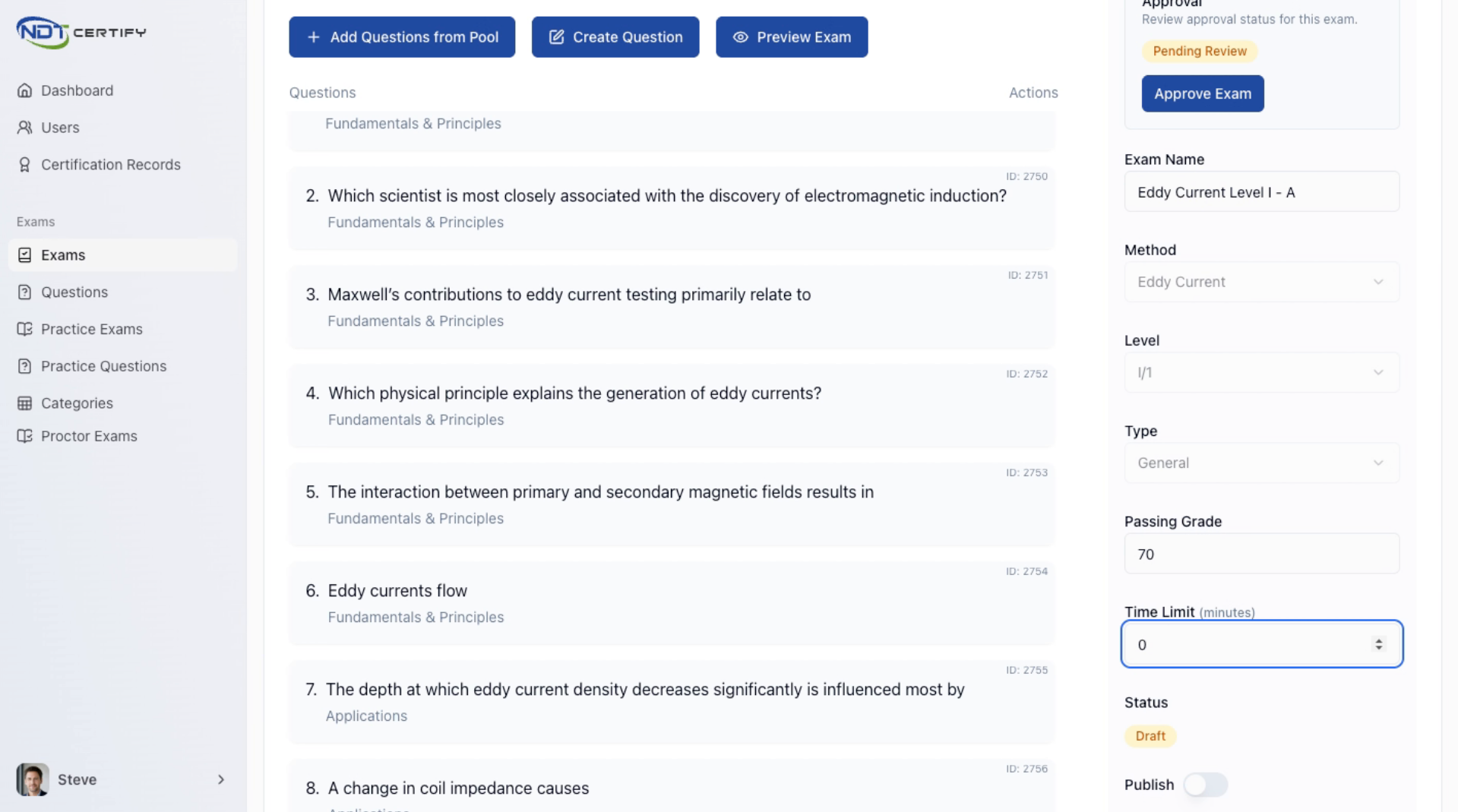
Set Exam Time Limit
Specify the time limit for the exam to control how long candidates have to complete it during proctoring.
- 20
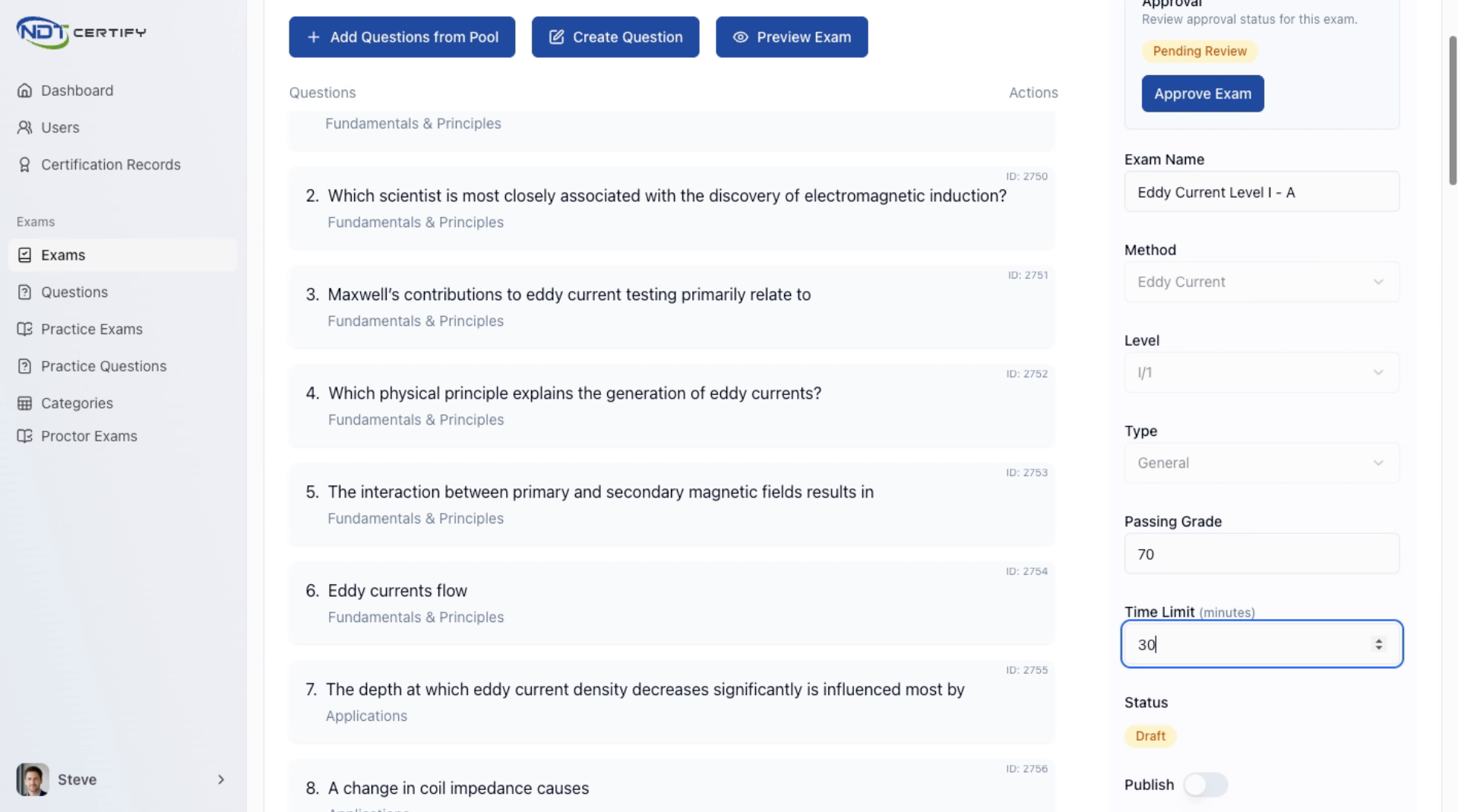
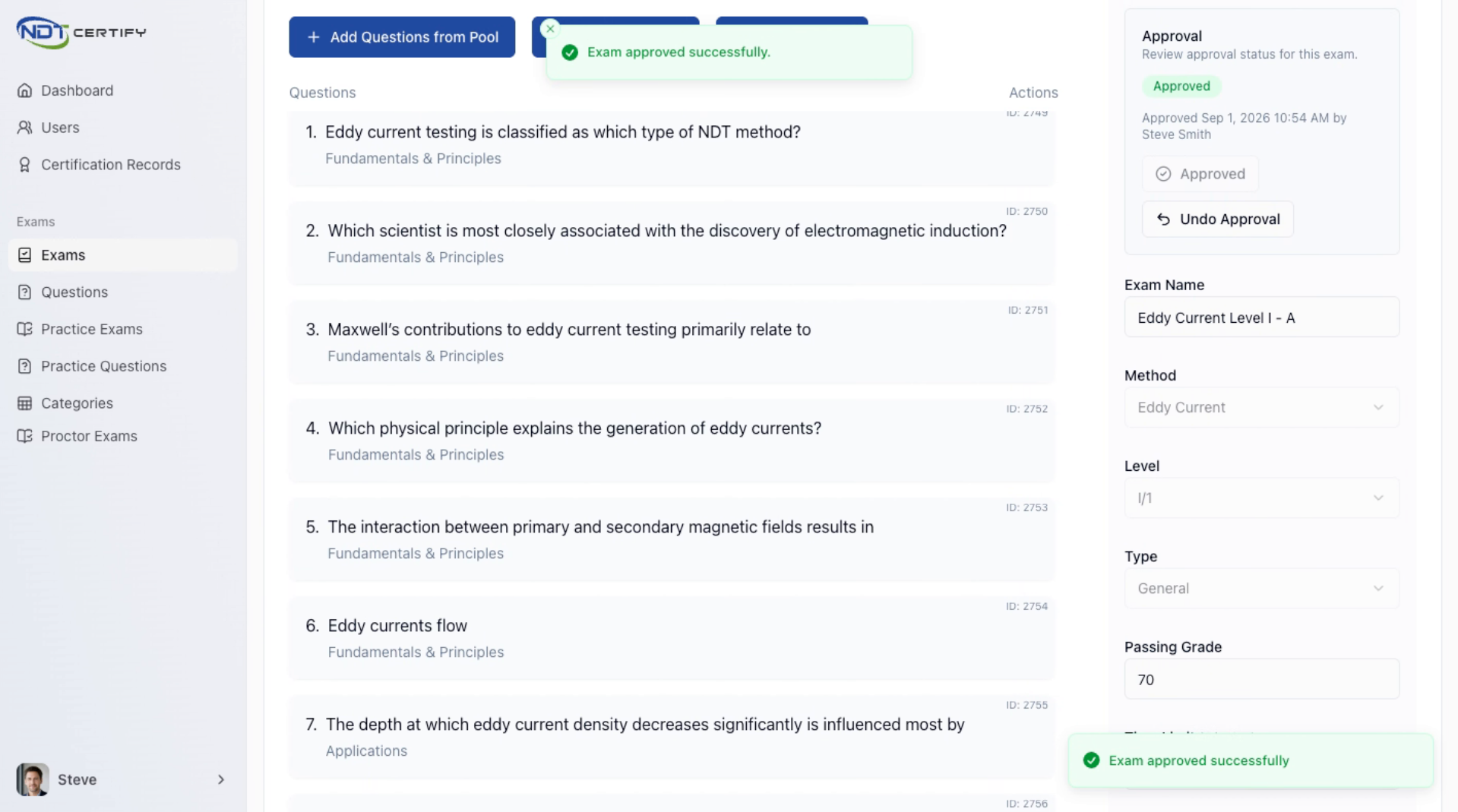
Approve the Exam
Approve the exam once all settings and questions are finalized to move it forward in the certification process.
- 21
Review Exam Approval Record
Approving the exam creates a time-stamped record of the Level 3 approval including date and time details.
- 22
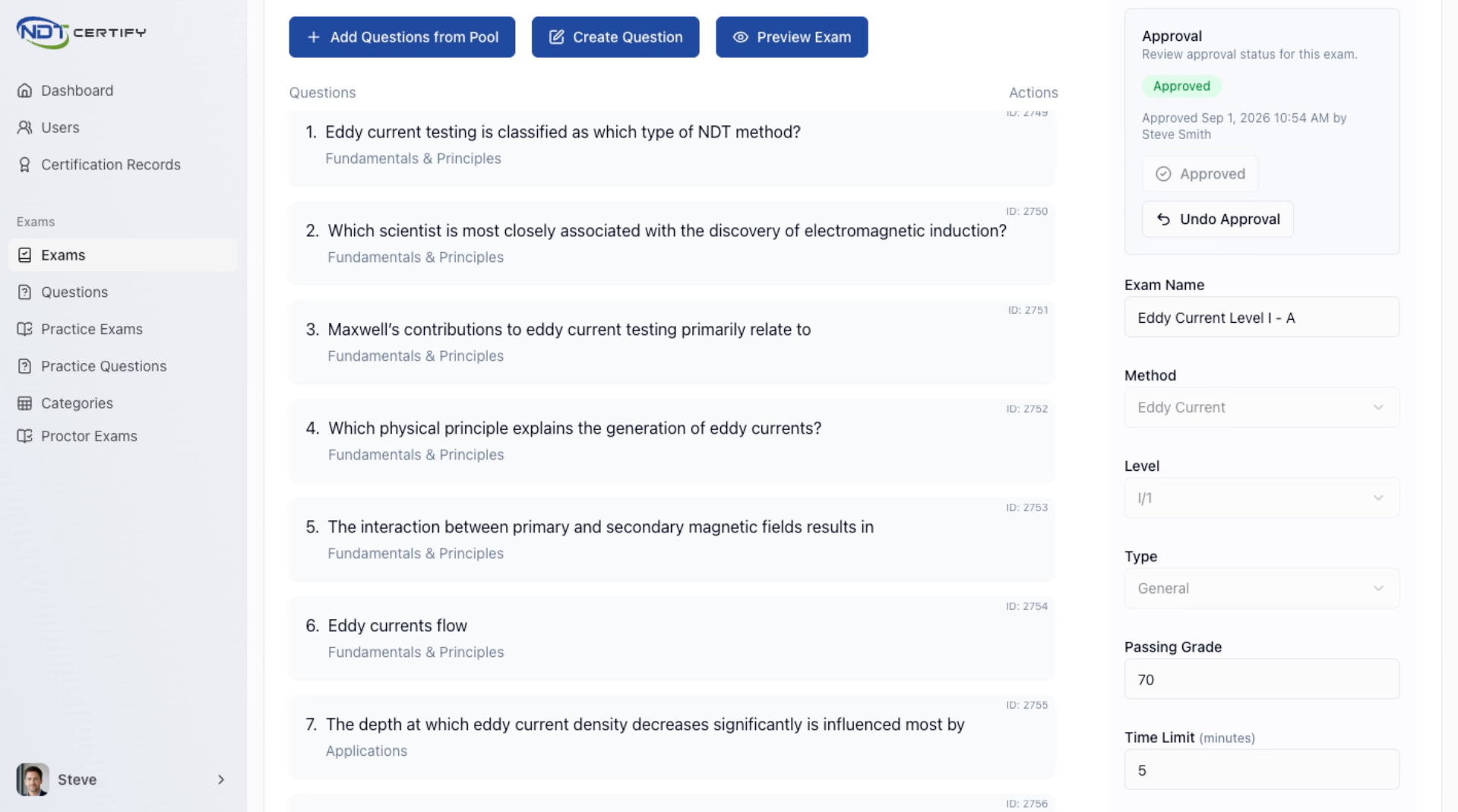
Save and Publish Exam
After approval, save and publish the exam to make it available for personnel to take.
Questions about creating exams?
Our team is happy to walk you through templates, question pools, passing grades, time limits, and the approval workflow.
Contact Support