Help Center
Documentation
Tutorial
Managing Certification Records
This tutorial explains how to create and manage certification records within the system. You will learn the steps to add users, input certification details, and finalize the certification process.
0:00 / 0:00 • Introduction
Step-by-step guide
- 01
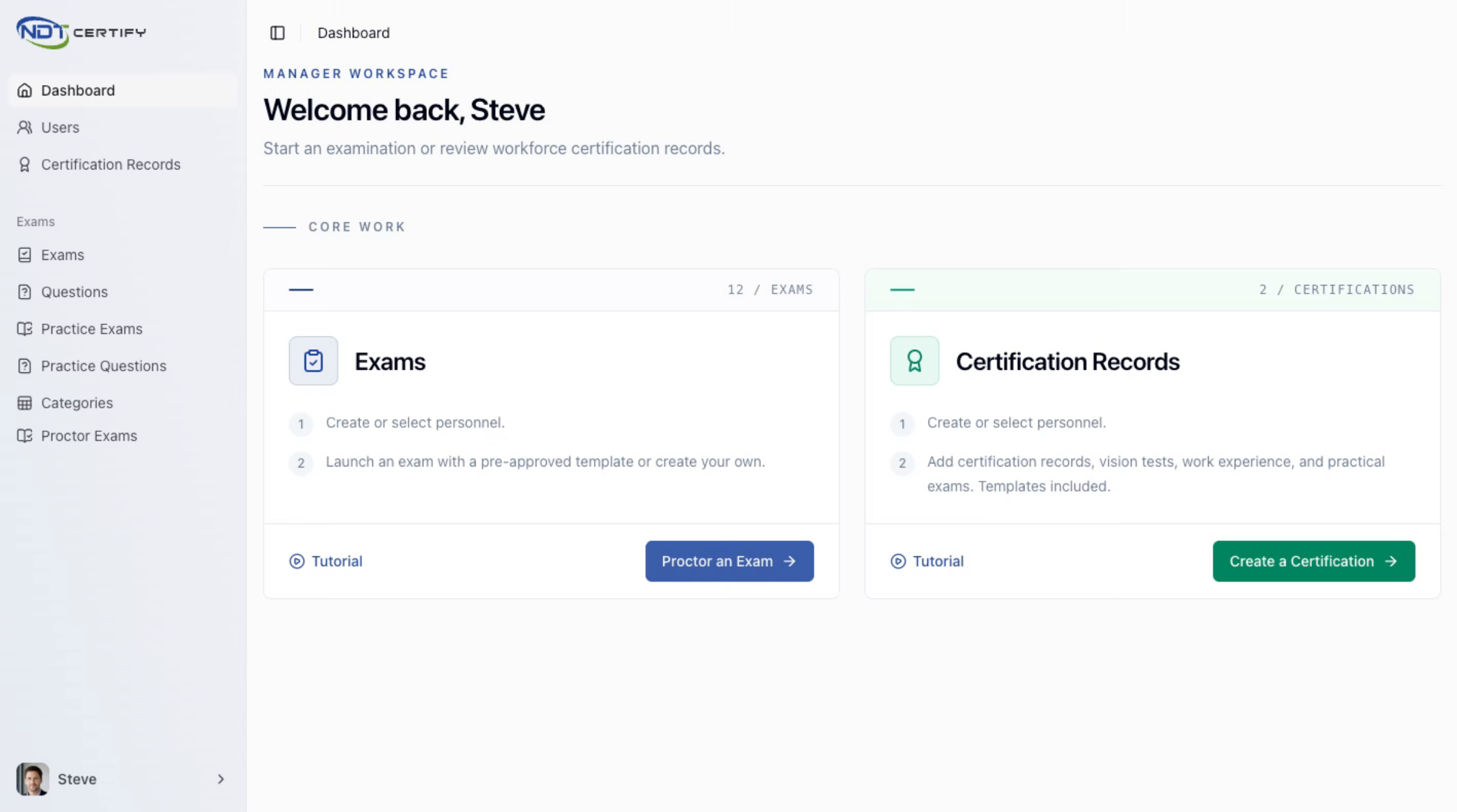
Introduce Certification Record Creation
Now let's create a certification record to begin managing personnel qualifications effectively.
- 02
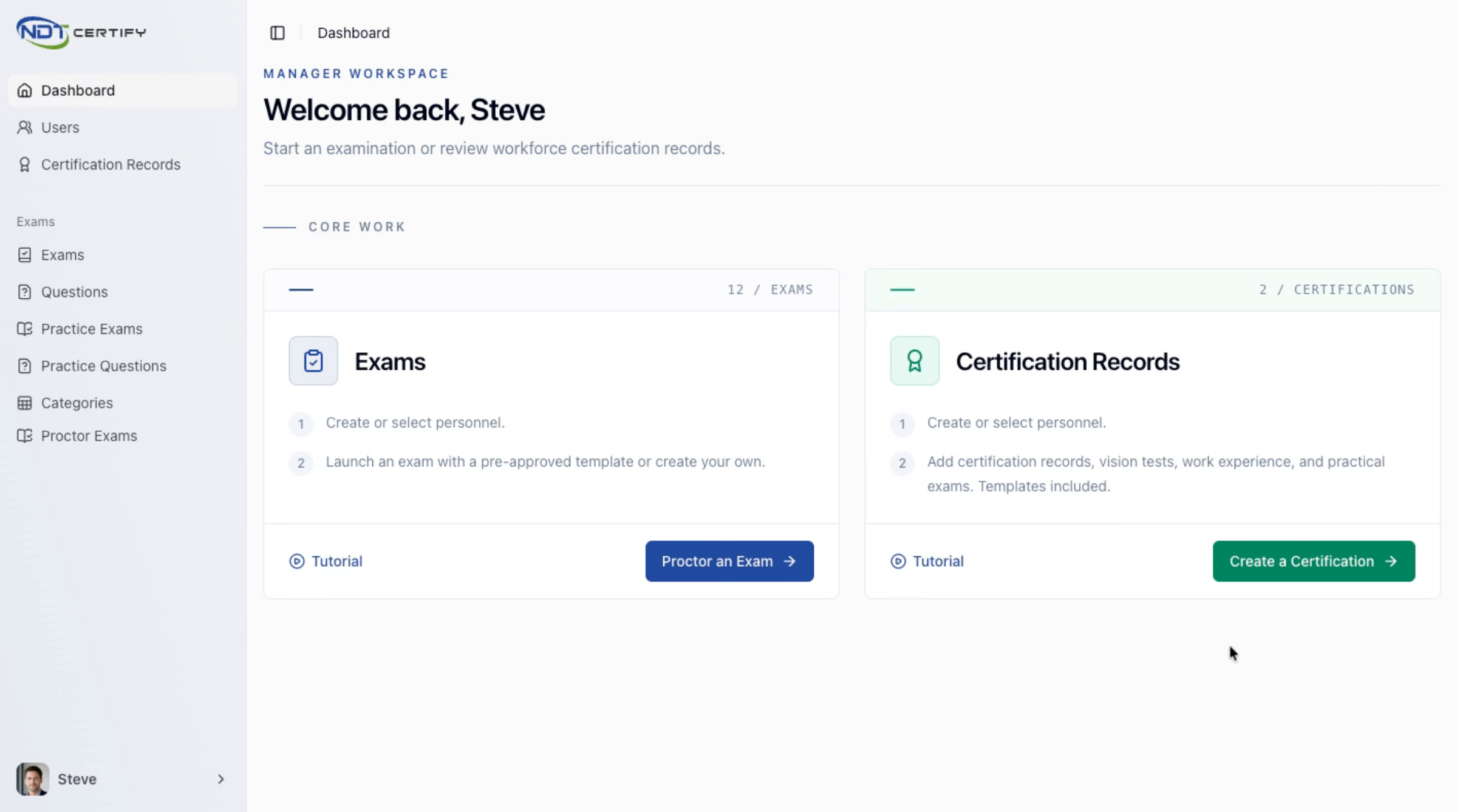
Open Certification Creation Interface
We can begin by creating a certification, which will display the full list of personnel within the organization for selection.
- 03
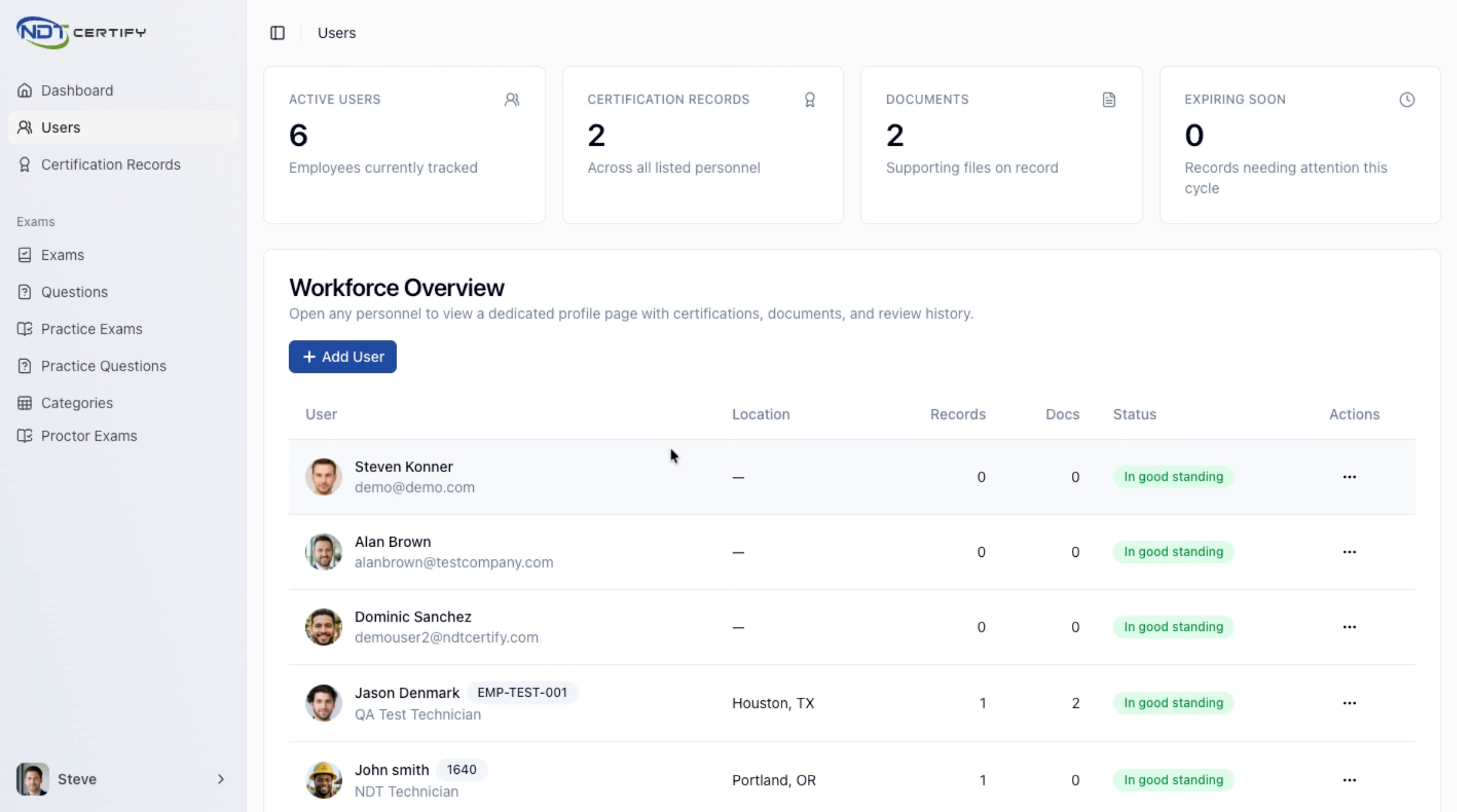
Add or Select User
So we can either add a new user by clicking the Add User button, or we can select the user that has previously been added.
- 04
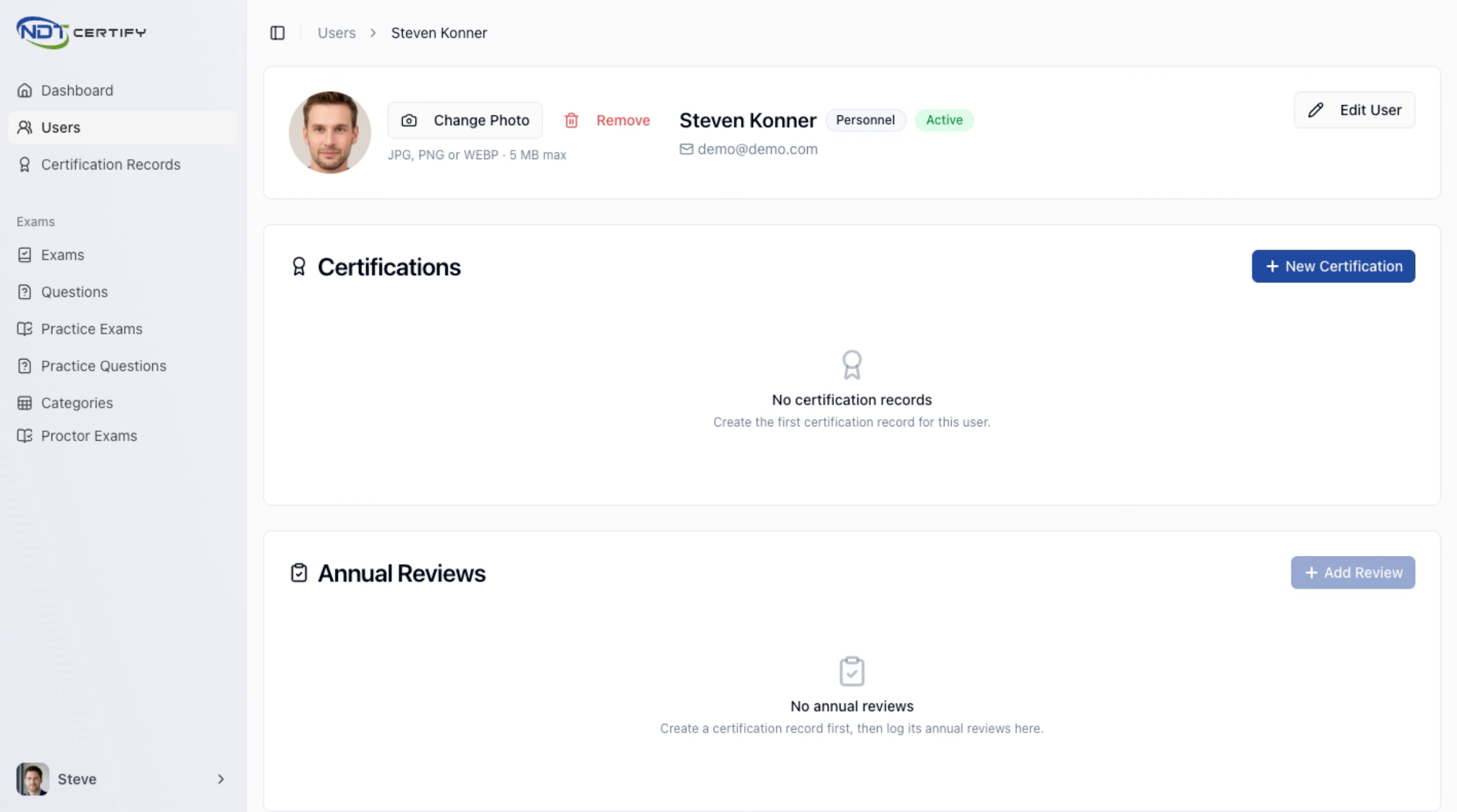
Edit User Profile or Add Certification
From the profile page, we can add photos, edit the user's information, or add a new certification to their record.
- 05
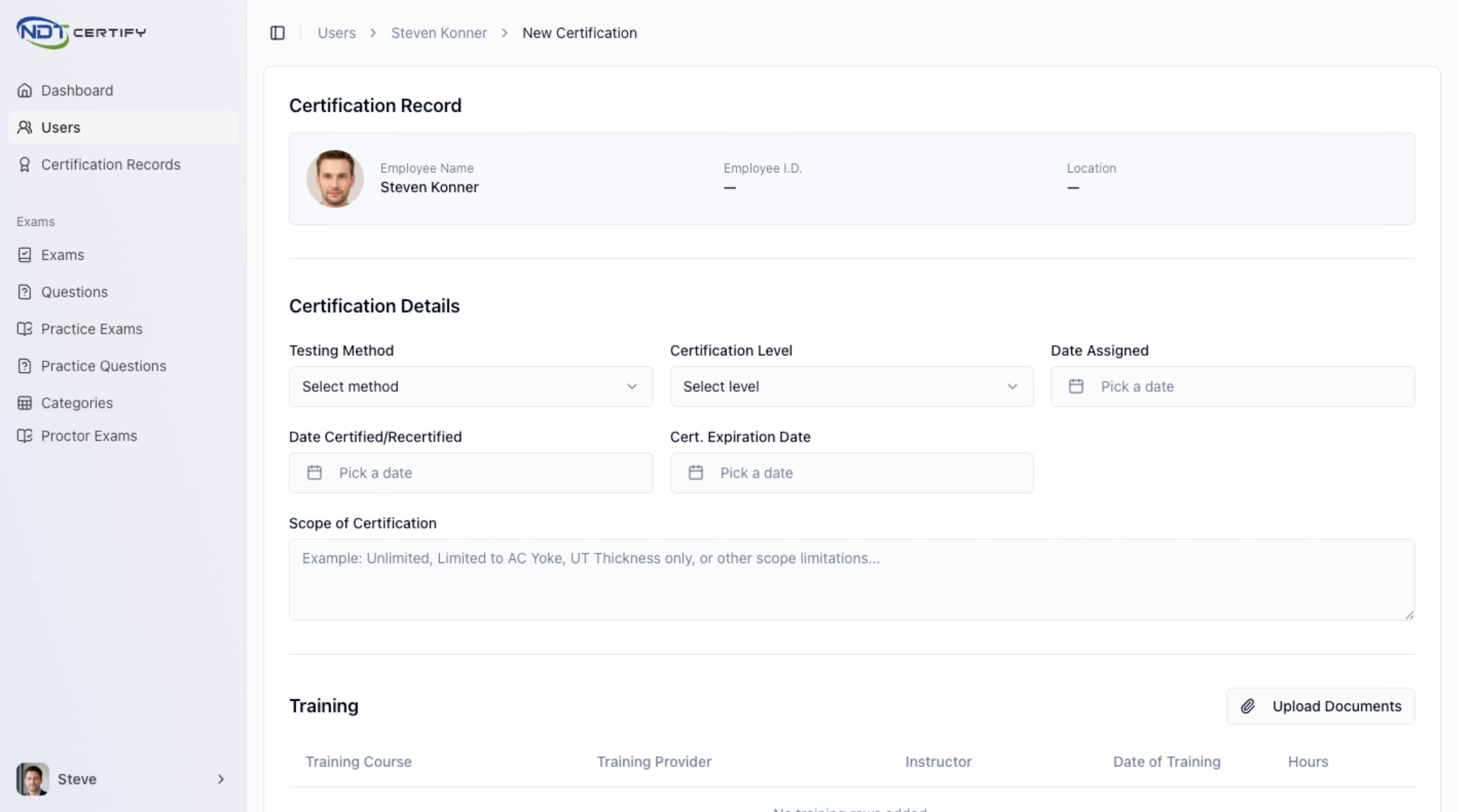
Select Certification Details
On the certification record, select the method, level, assigned date, certification dates, expiration, and scope to complete the details.
- 06
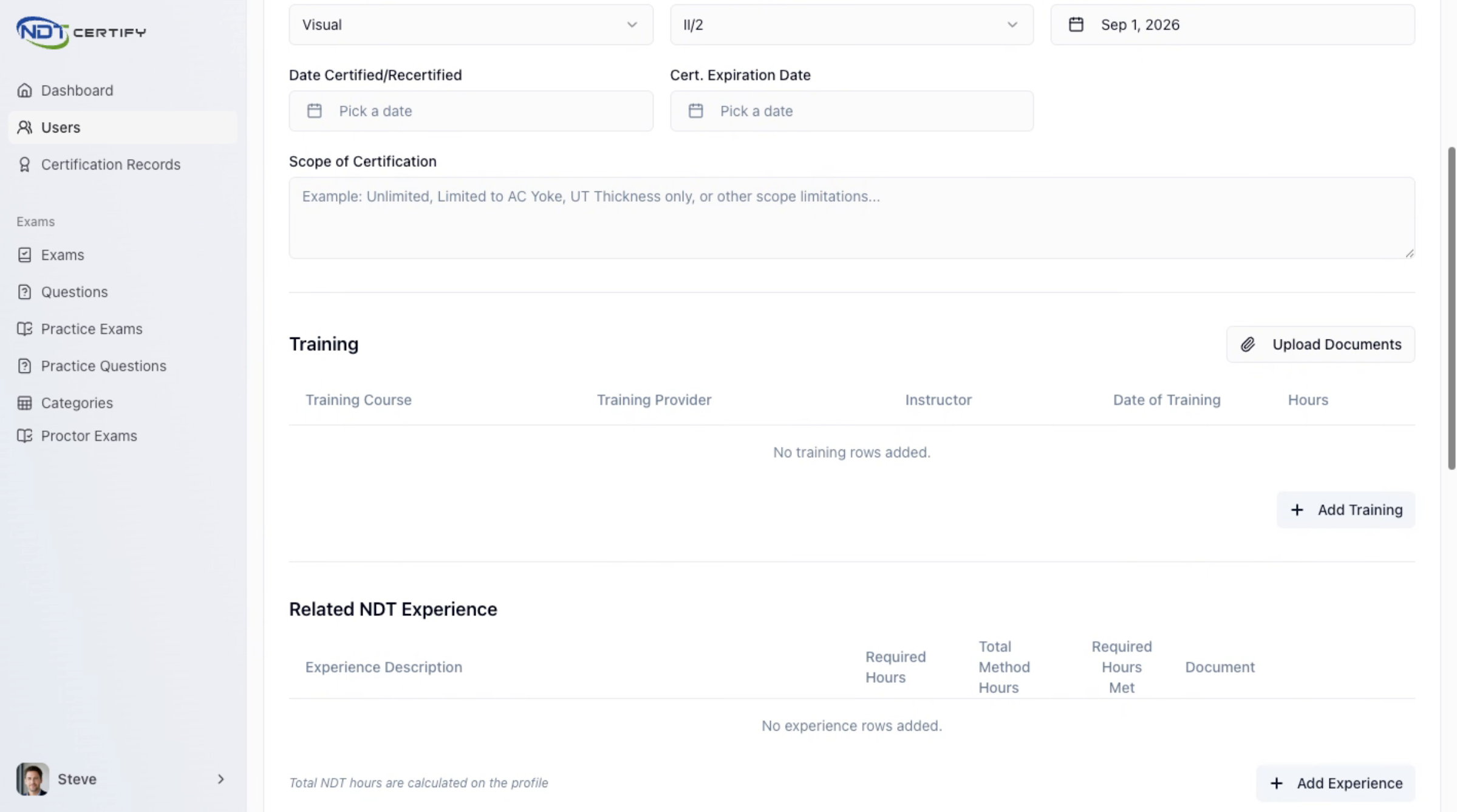
Upload Training Documents
Scroll down to upload training documents and add relevant training information for the selected certification method.
- 07
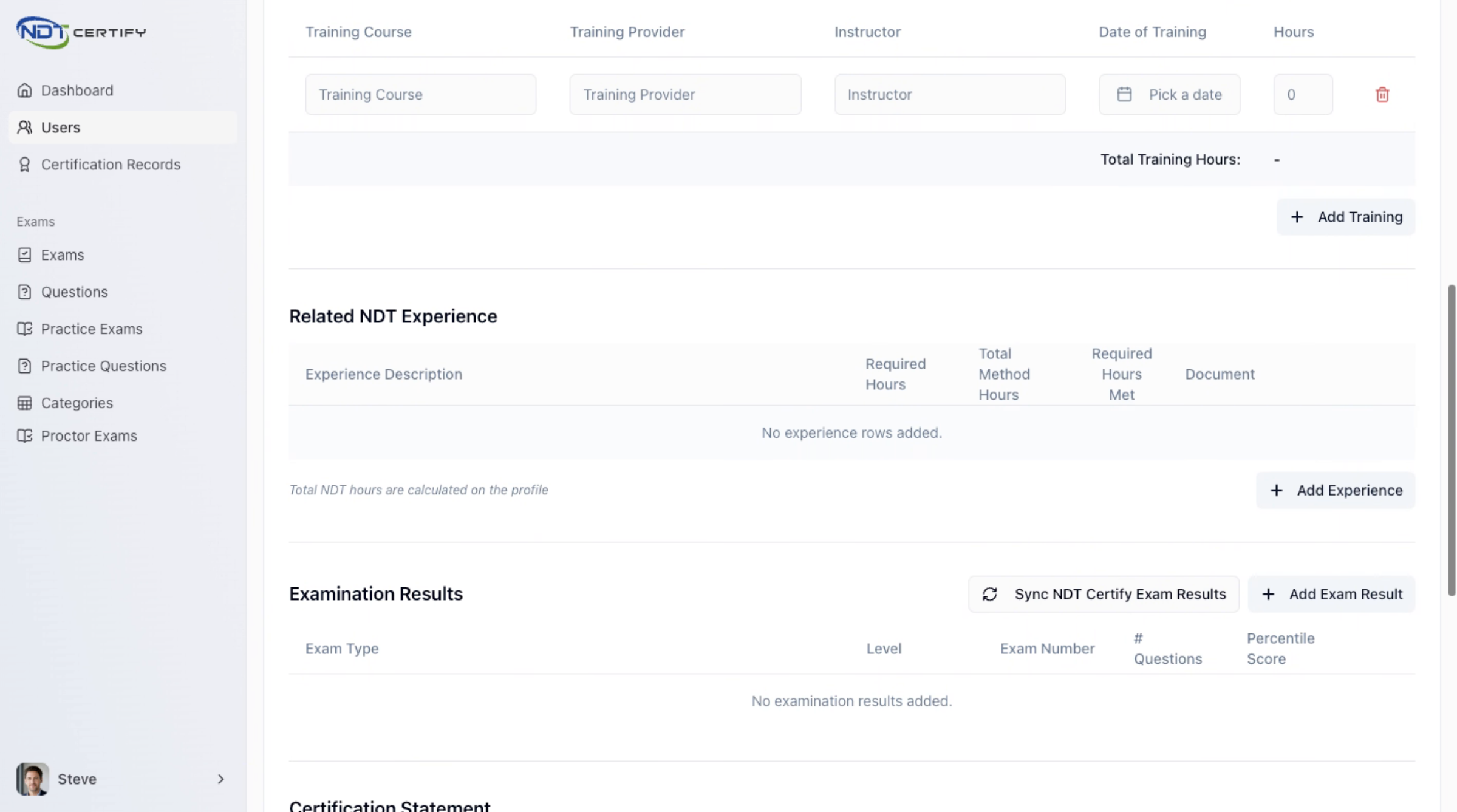
Add Experience and Exam Results
Add experience details and sync exam results from NDT Certify or manually input exam outcomes as needed.
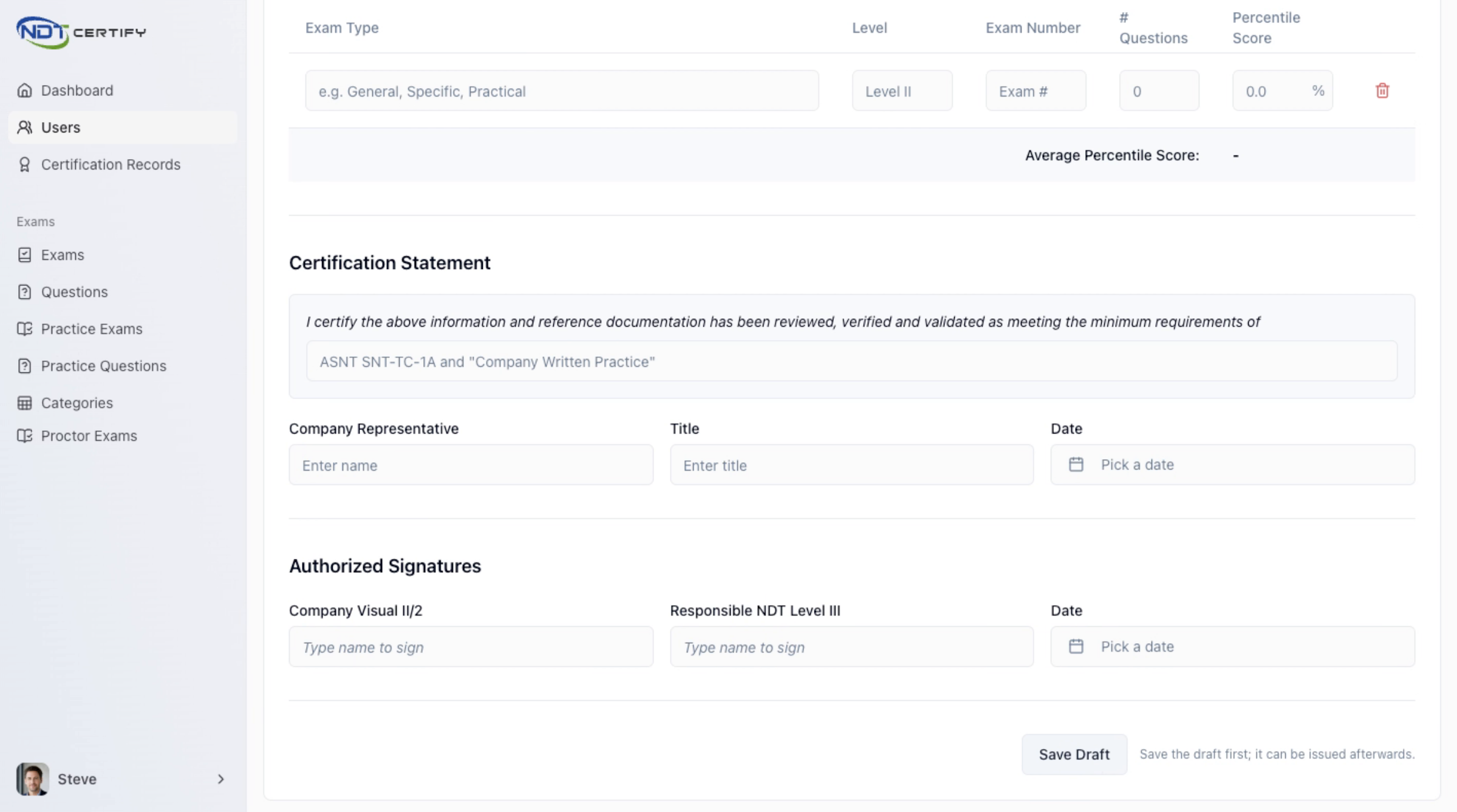
- 08
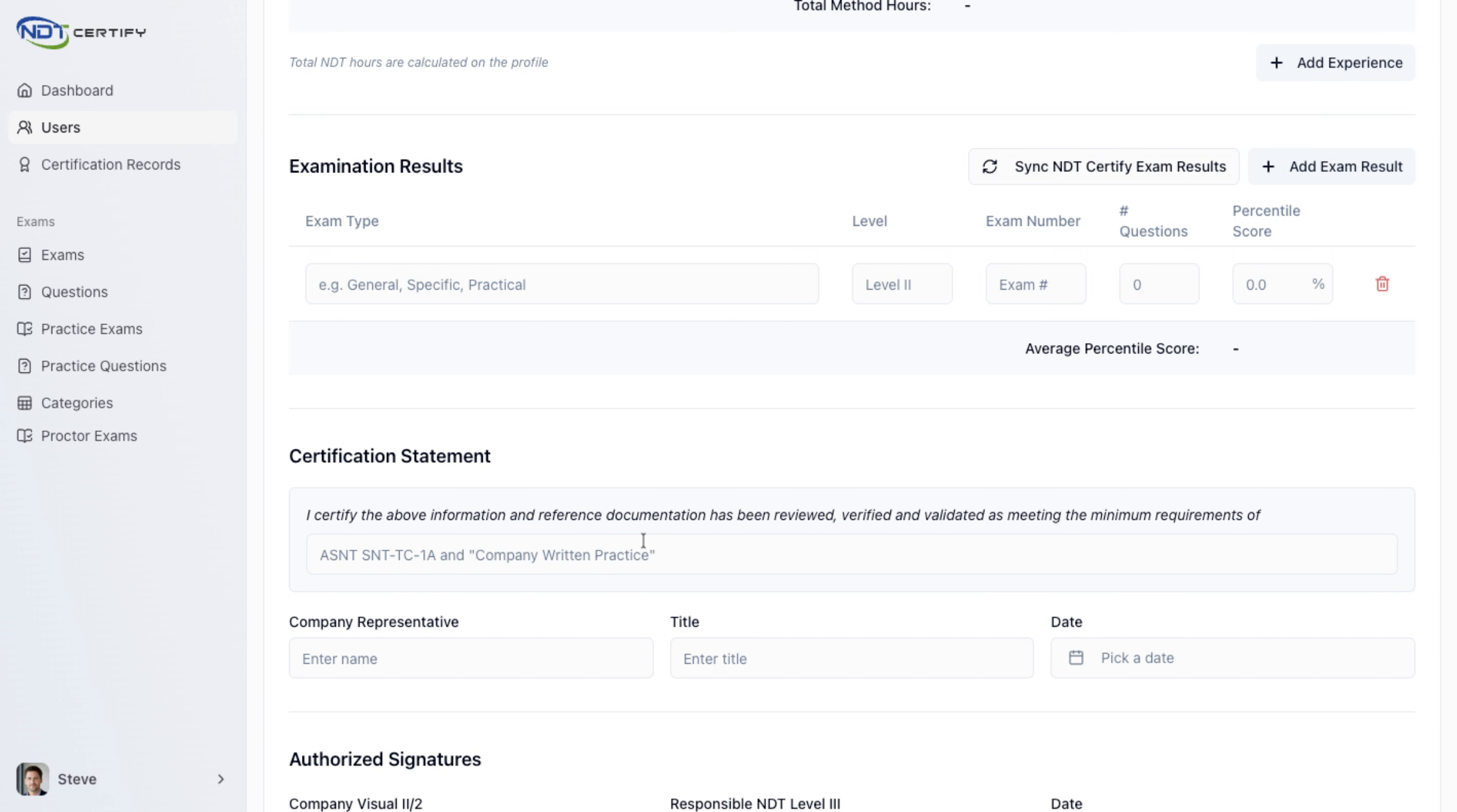
Complete Certification Statement and Sign
Complete the certification statement, enter company representative information, sign the document, and save your changes.
- 09
Review and Issue Certification
After saving, review the certification for accuracy and then issue it to finalize the process.
Questions about certification records?
Our team is happy to walk you through adding personnel, entering certification details, and issuing records.
Contact Support