Help Center
Documentation
Tutorial
Proctoring an Exam
This tutorial explains how to proctor an exam using NDT Certify. You will learn the steps to select users, choose exams, and launch the proctoring process.
0:00 / 0:00 • Introduction
Step-by-step guide
- 01
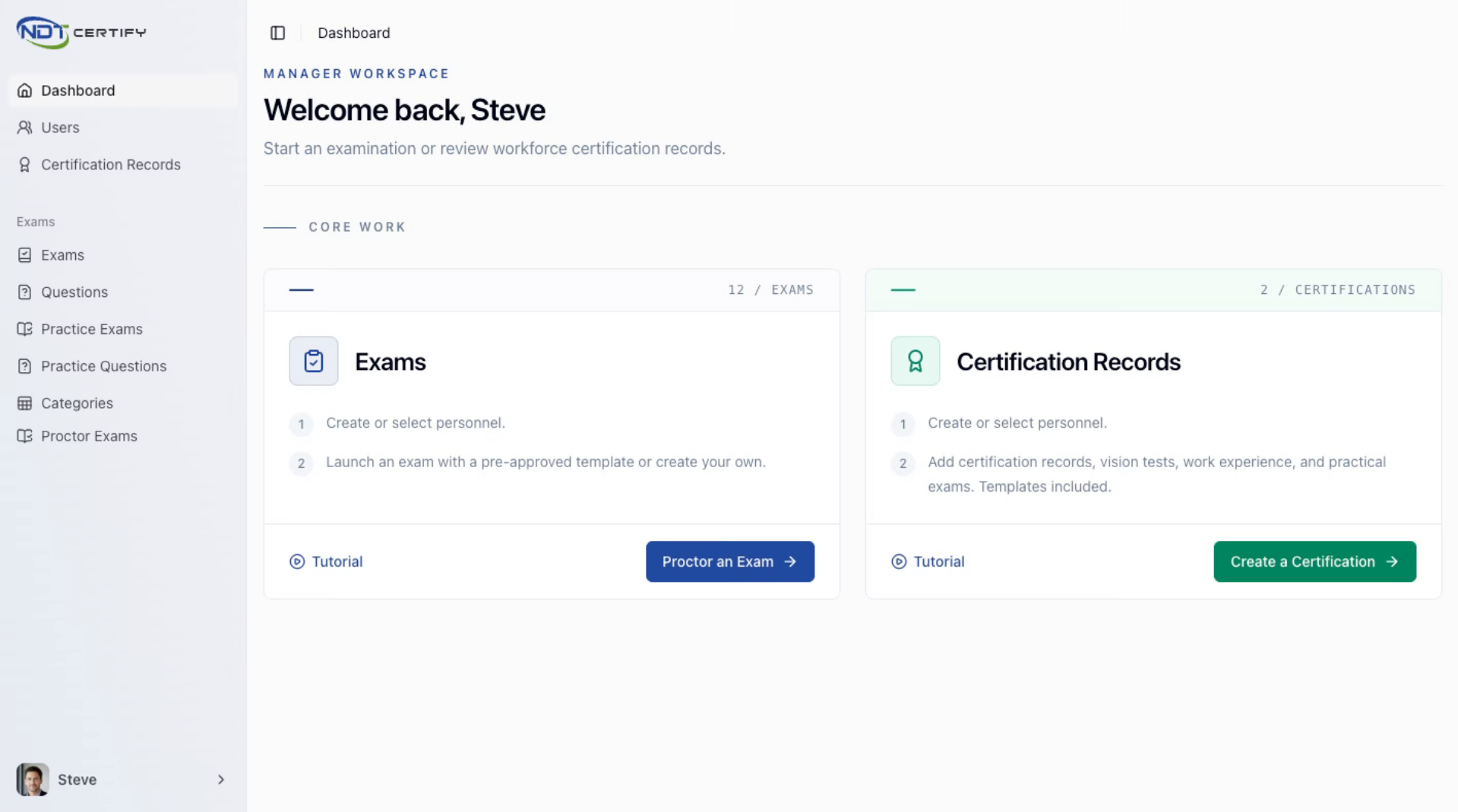
Start Exam Proctoring
Begin the exam proctoring process by initiating it from the dashboard in NDT Certify.
- 02
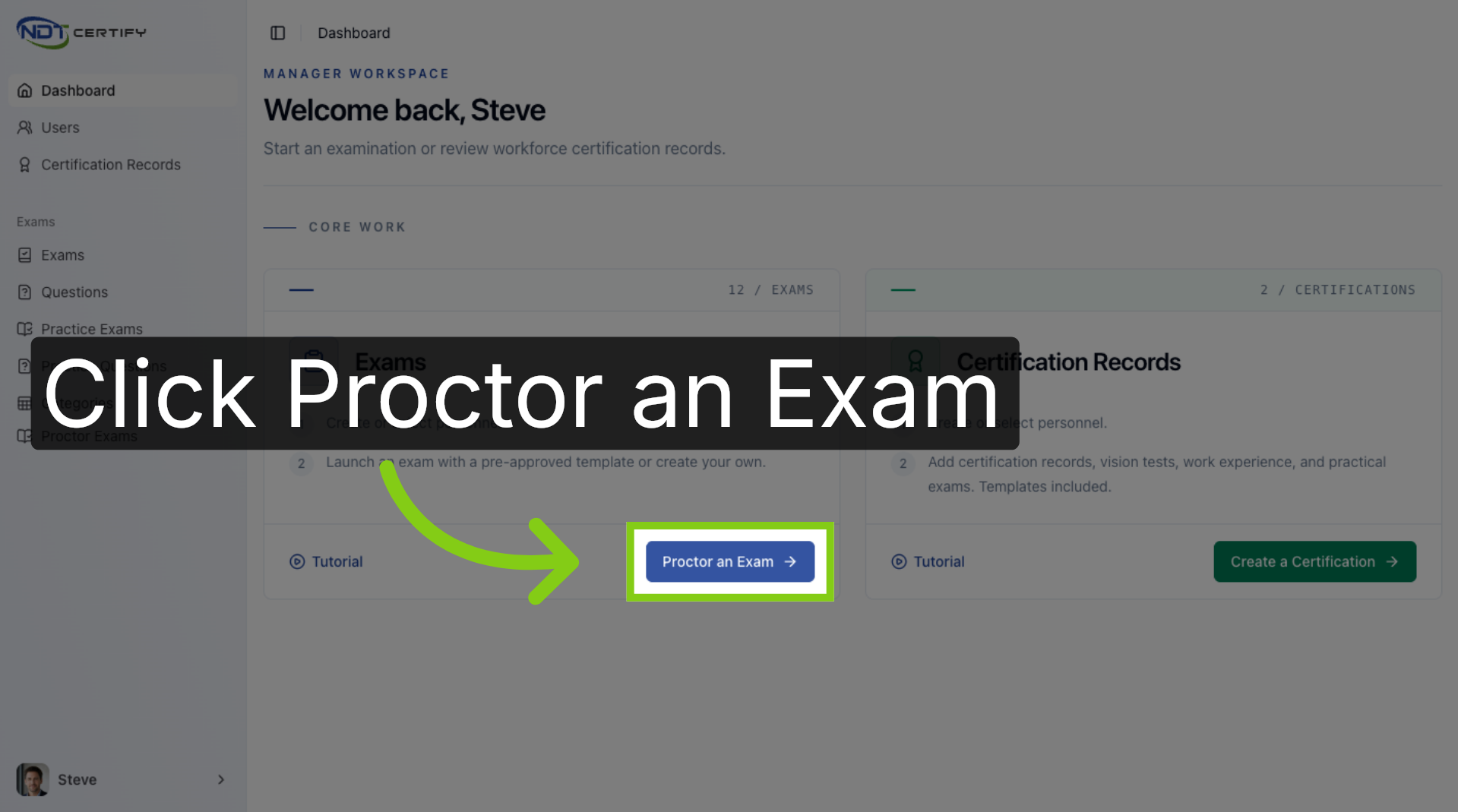
Open Proctor Exam Panel
Click the Proctor an Exam button on the dashboard to access the exam proctoring options.
- 03
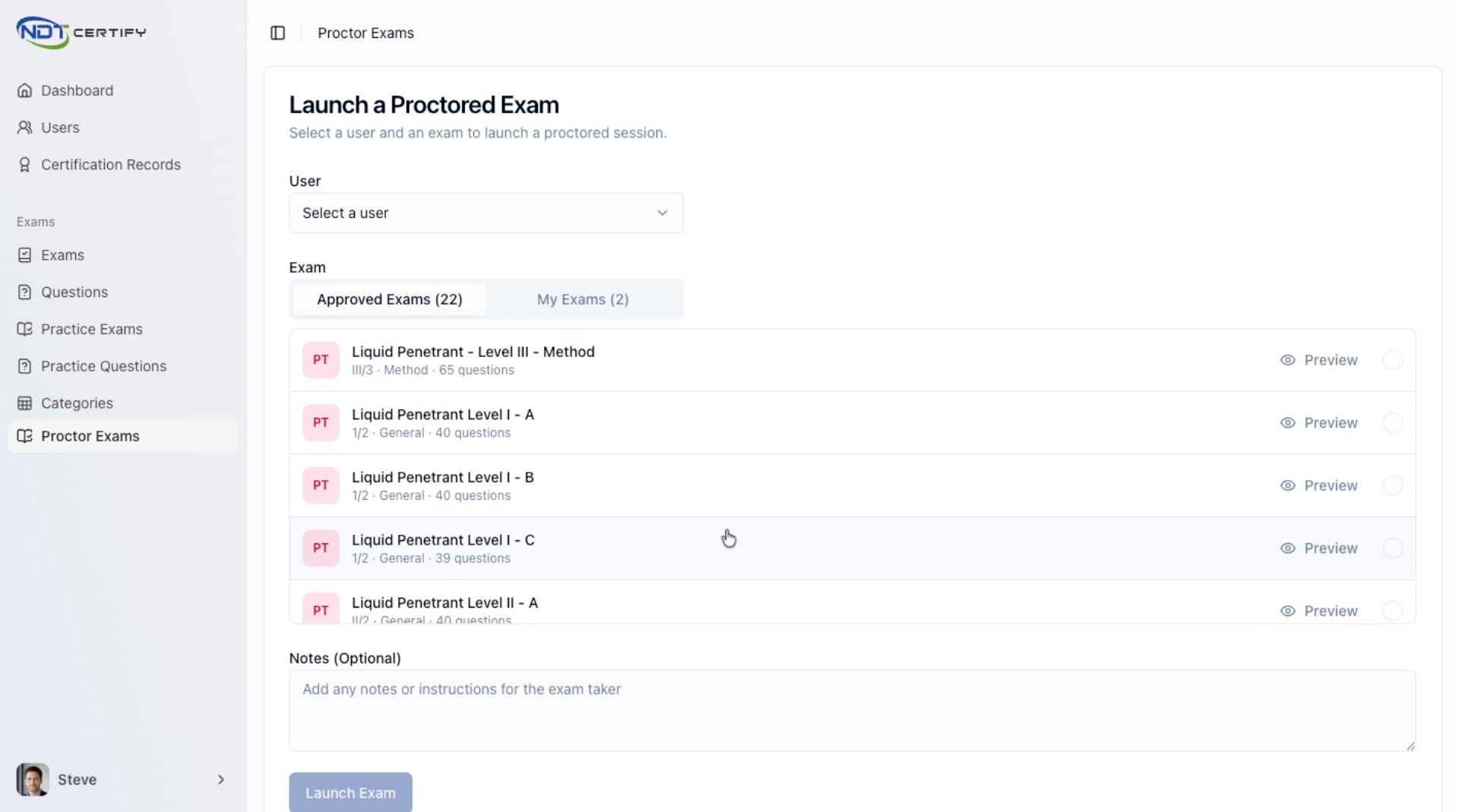
Select Exam User
Choose the user or personnel who will be taking the exam from the available list.
- 04
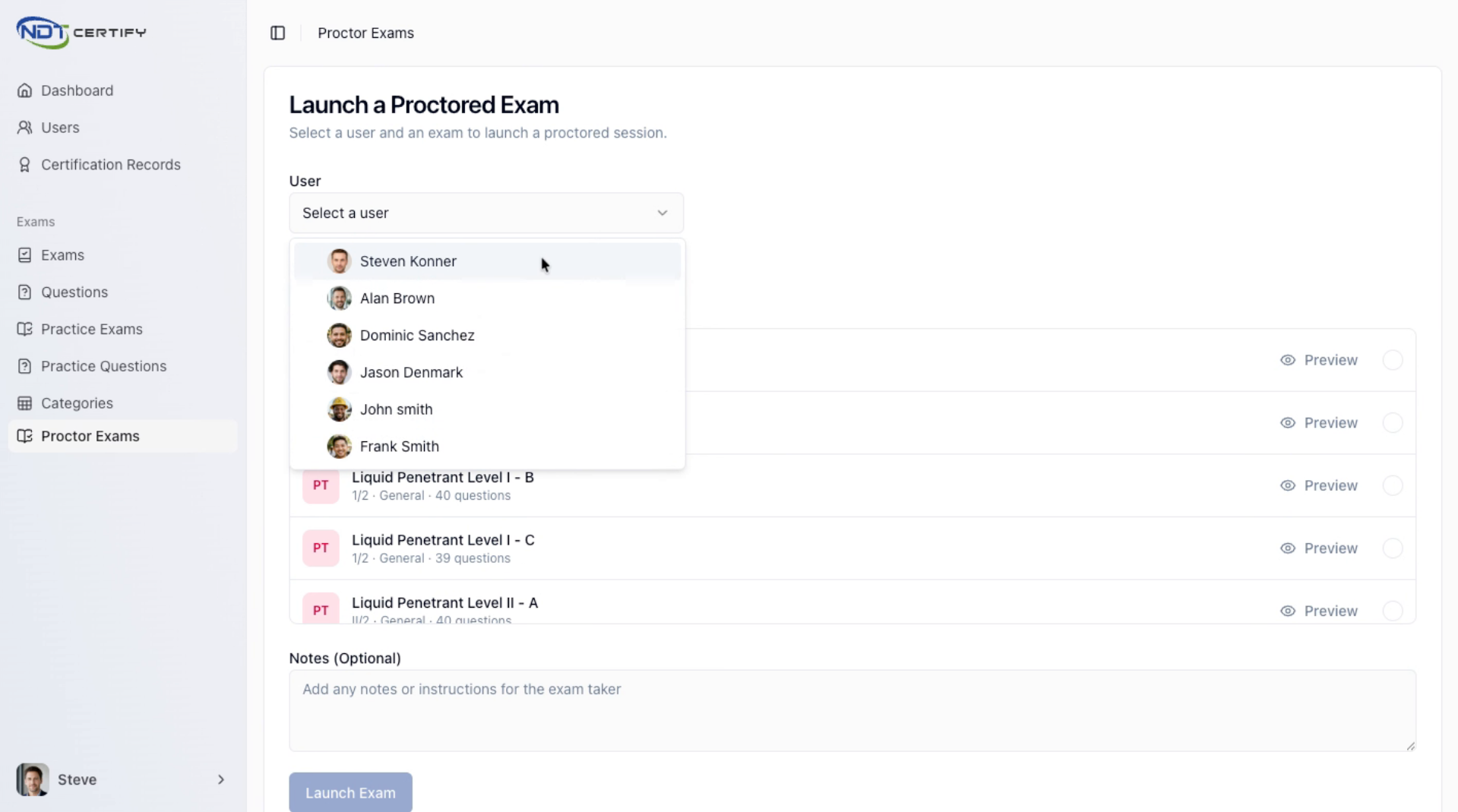
Add New User if Needed
If the user is not listed, add new personnel via the user tab to make them selectable for the exam.
- 05
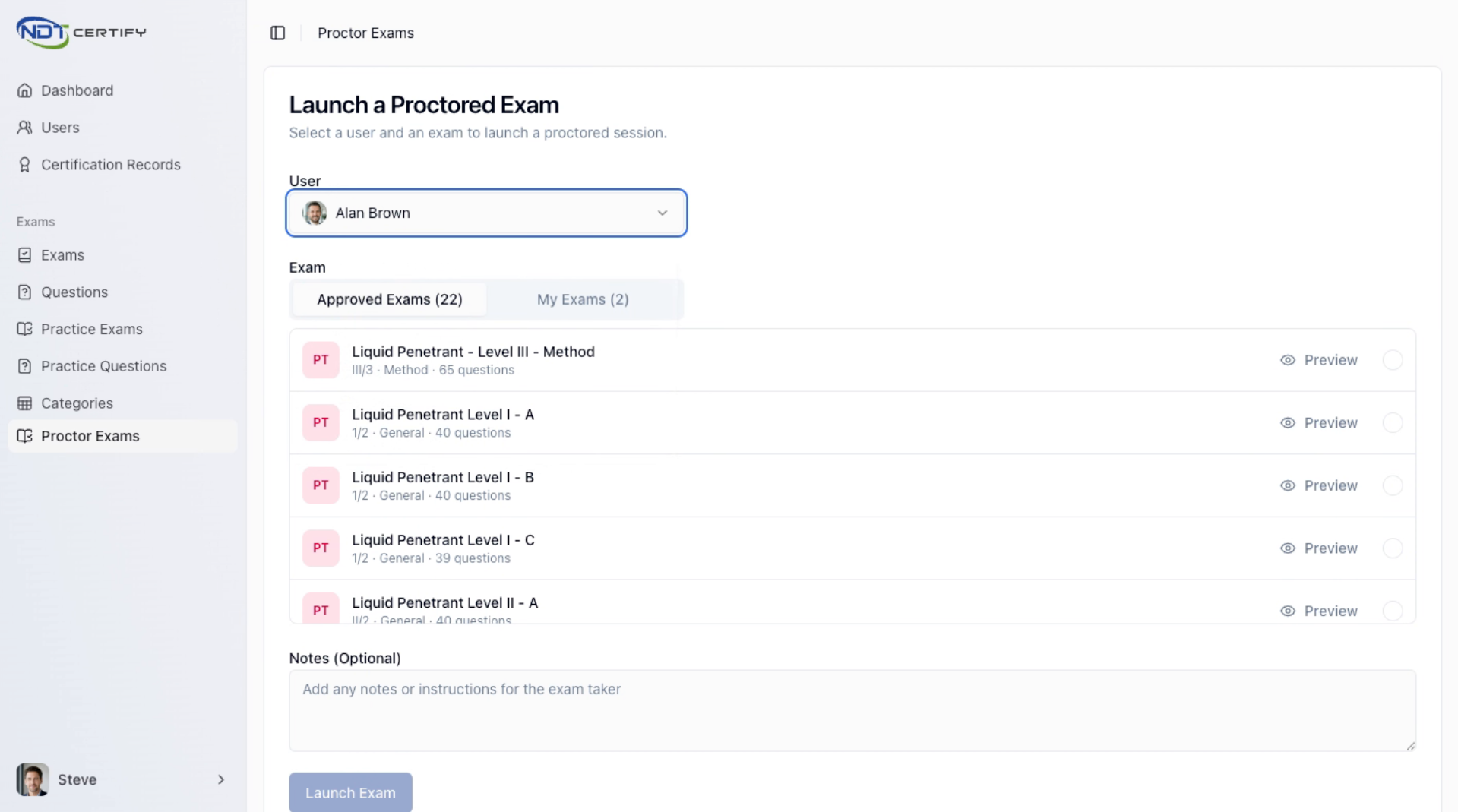
Choose Pre-Approved Exam
After selecting the user, pick a pre-approved exam to assign for proctoring.
- 06
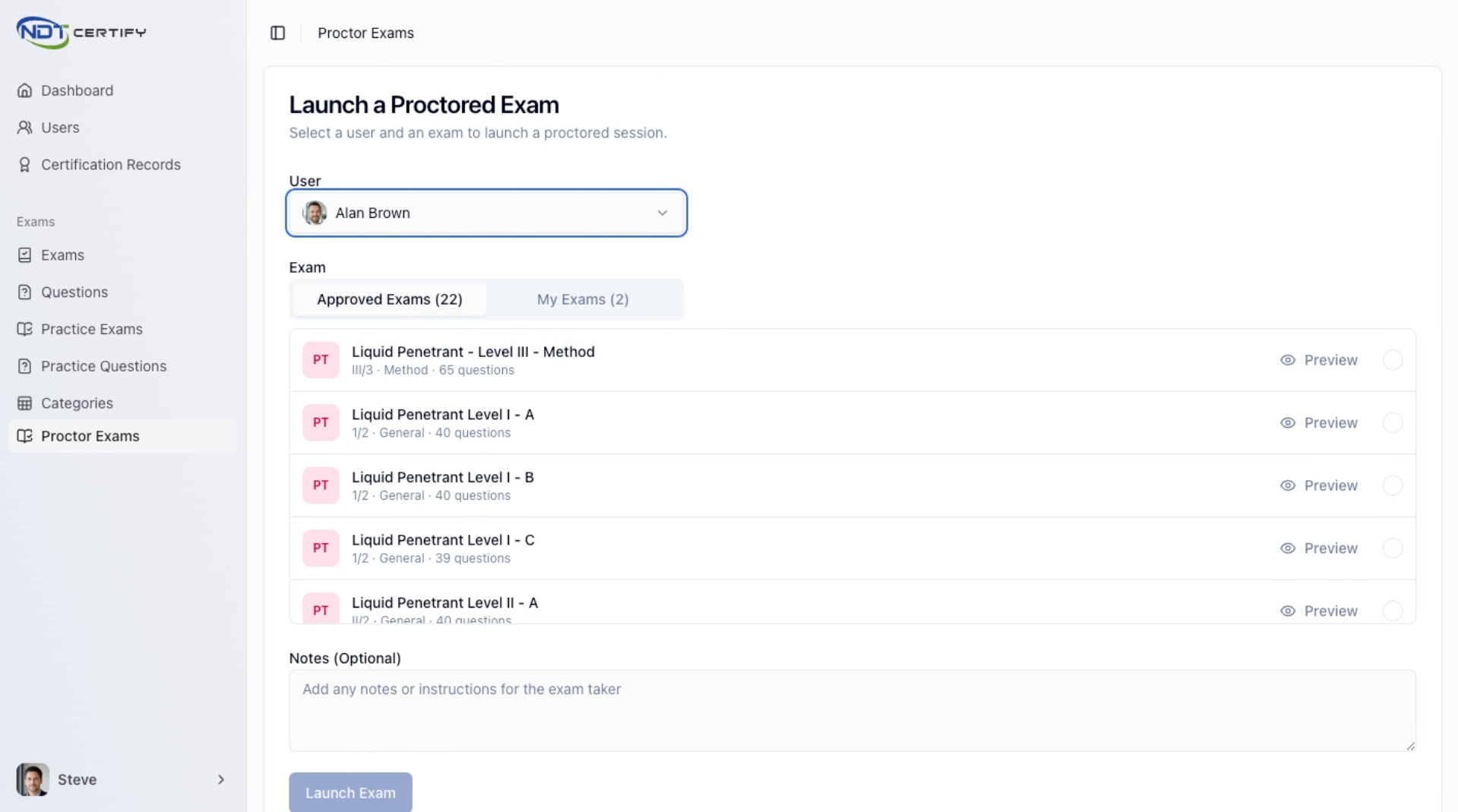
Select Custom or Level Three Exam
Decide between a level three pre-approved exam or a custom exam created within NDT Certify.
- 07
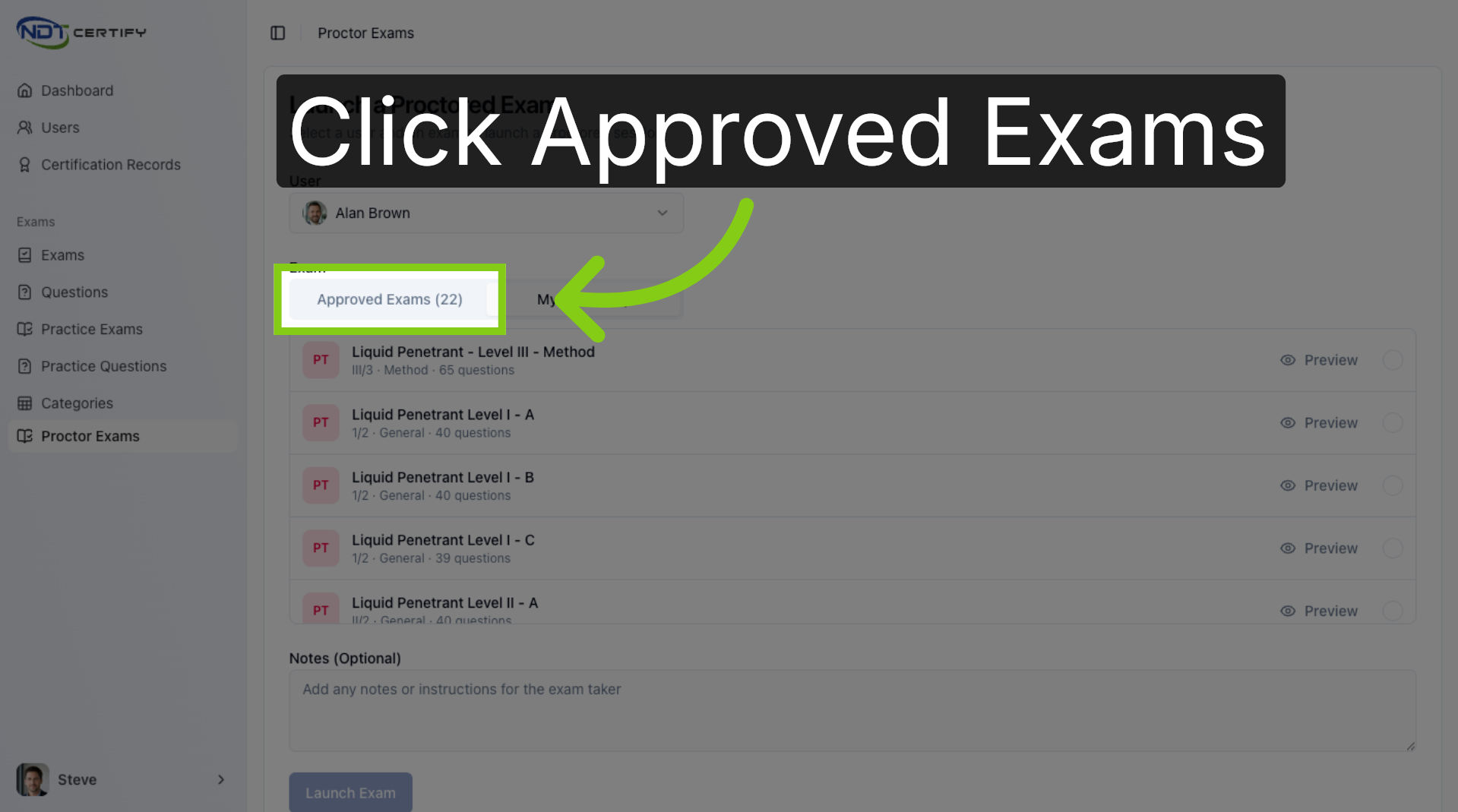
Access Approved Exams List
Open the Approved Exams section to view all exams available for proctoring.
- 08
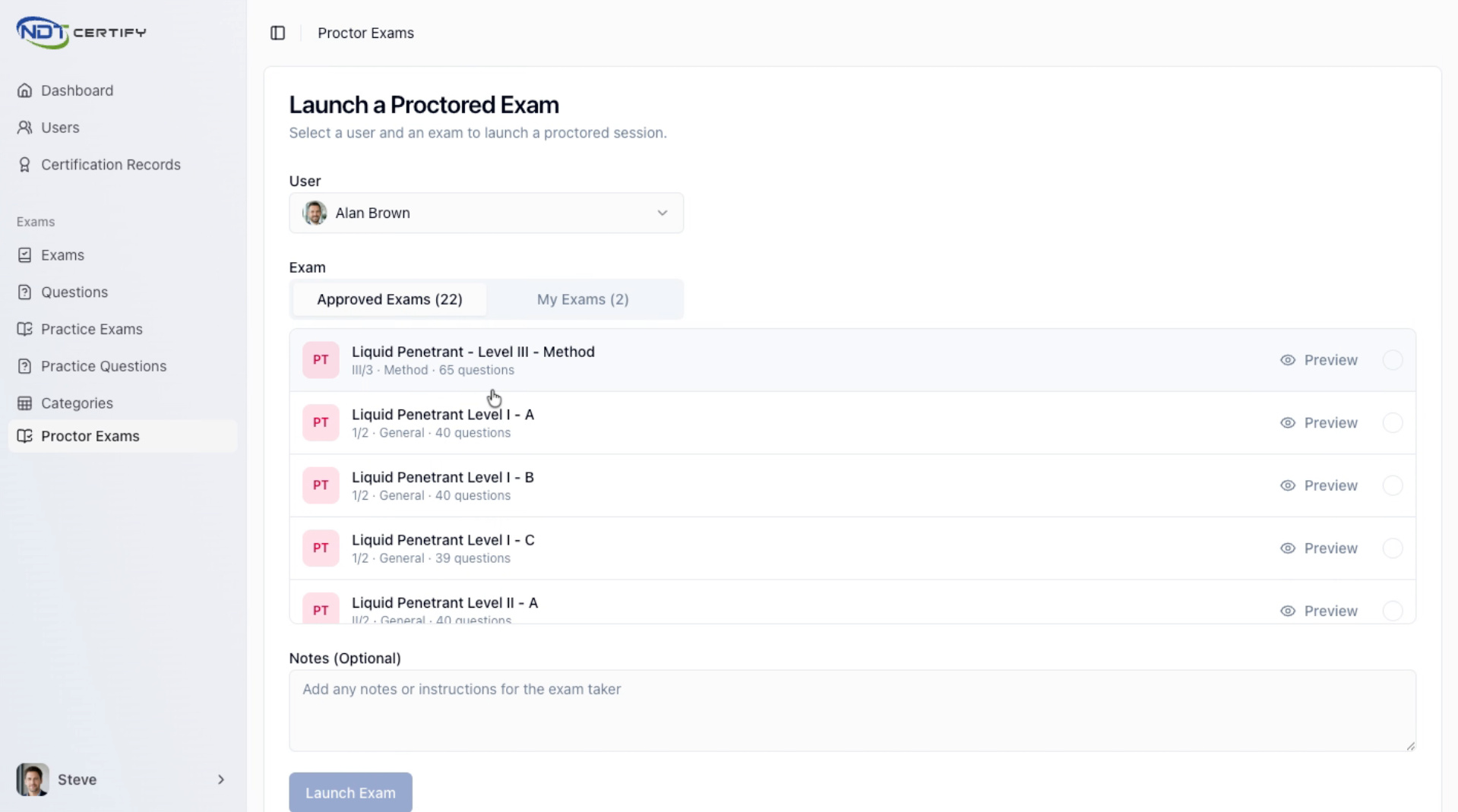
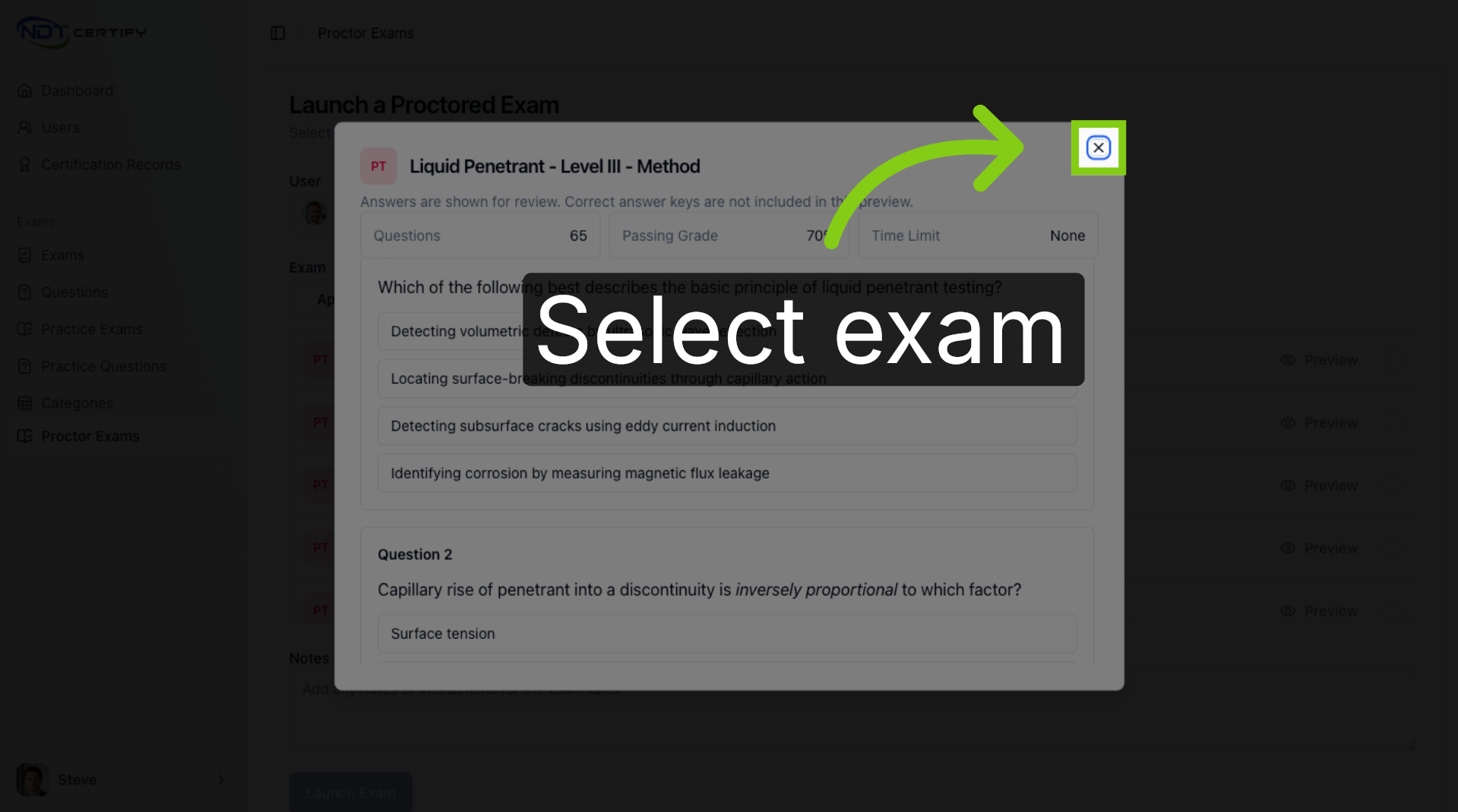
Preview Exam Details
Review the exam's question count, passing grade, and time limit to ensure it fits your requirements.
- 09
Select Exam to Proctor
Choose the exam you want to proctor to proceed with the setup and customization options.
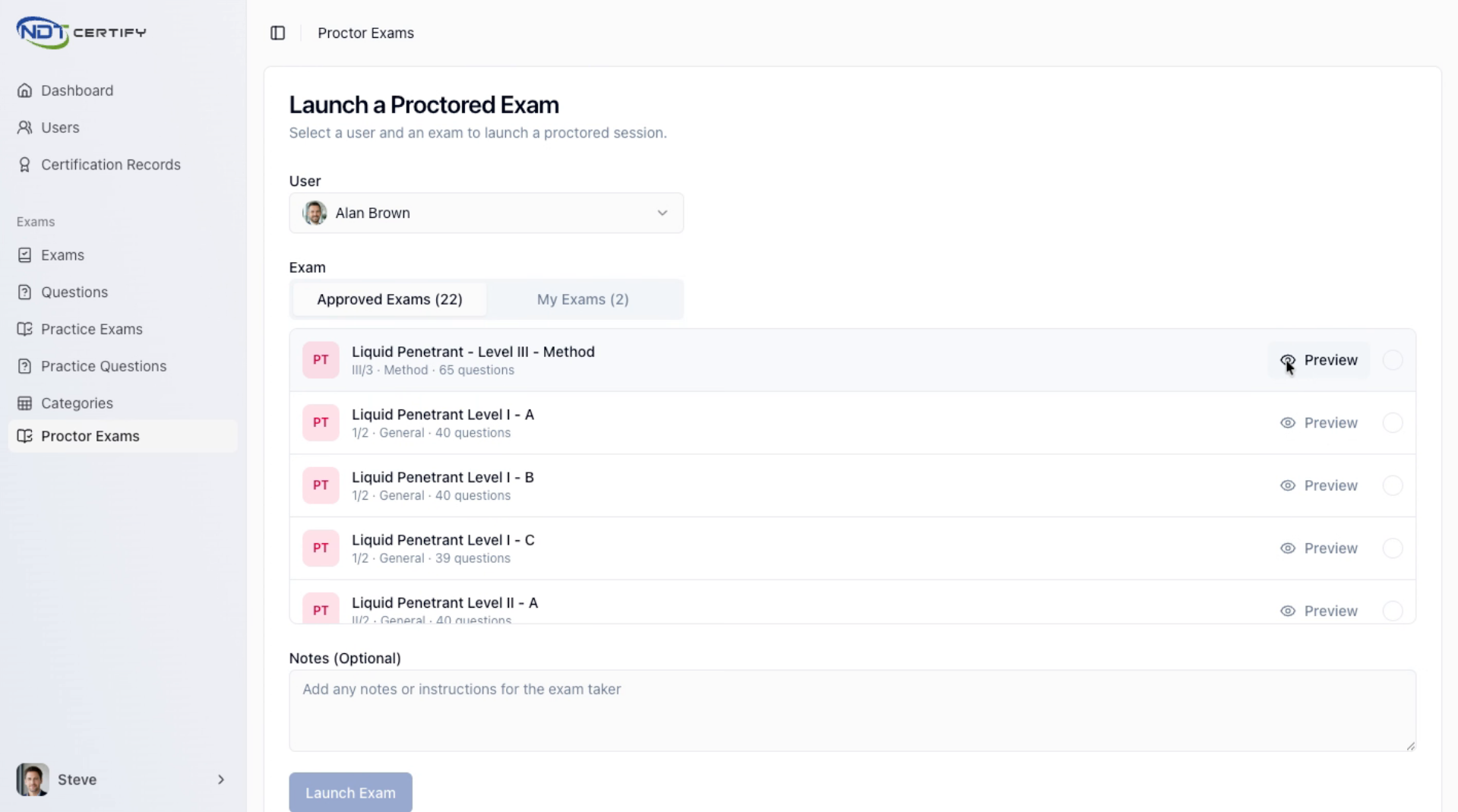
- 10
Confirm Exam and Add Notes
Confirm your exam selection and add any relevant notes or documentation for the personnel.
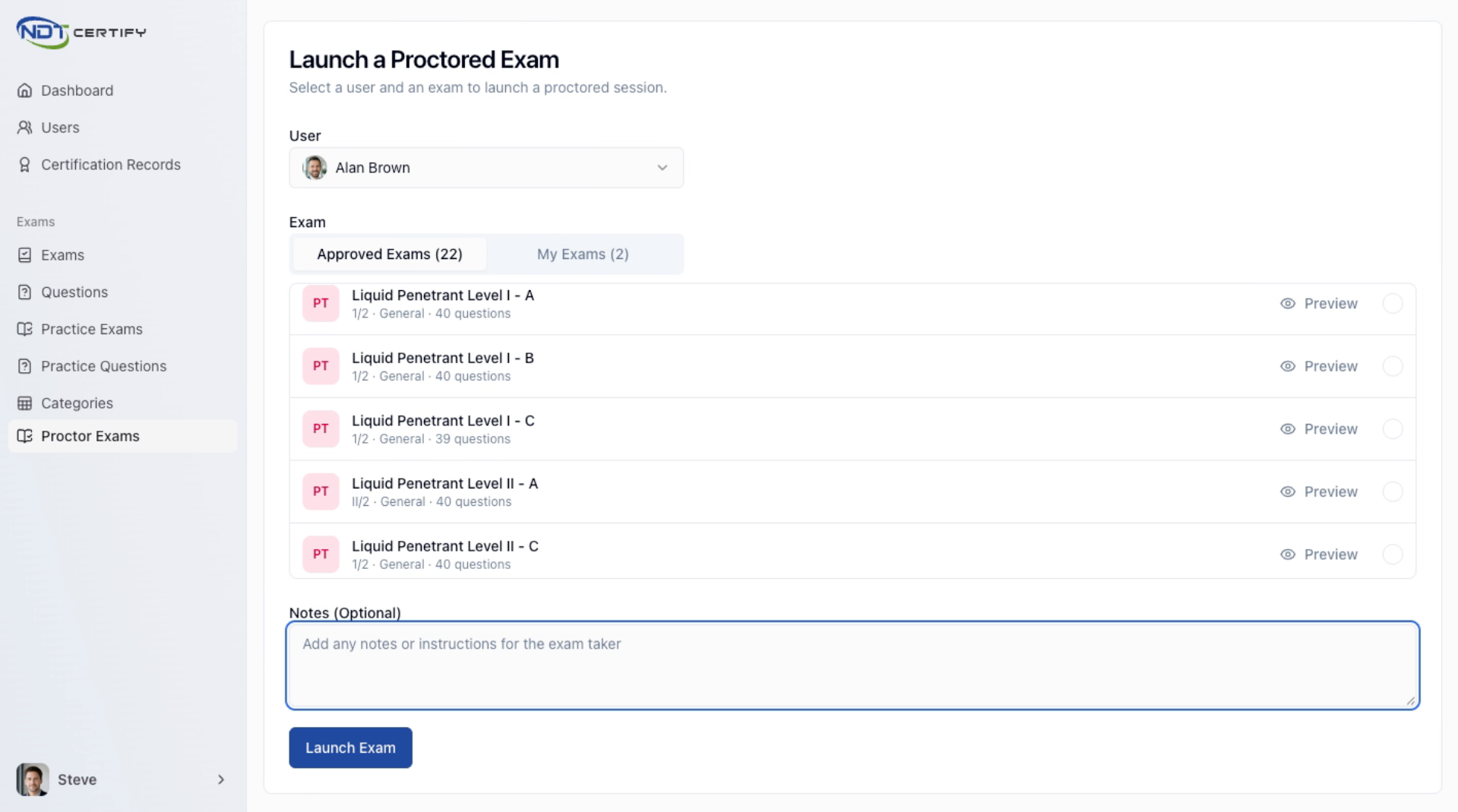
- 11
Add Notes and Launch Exam
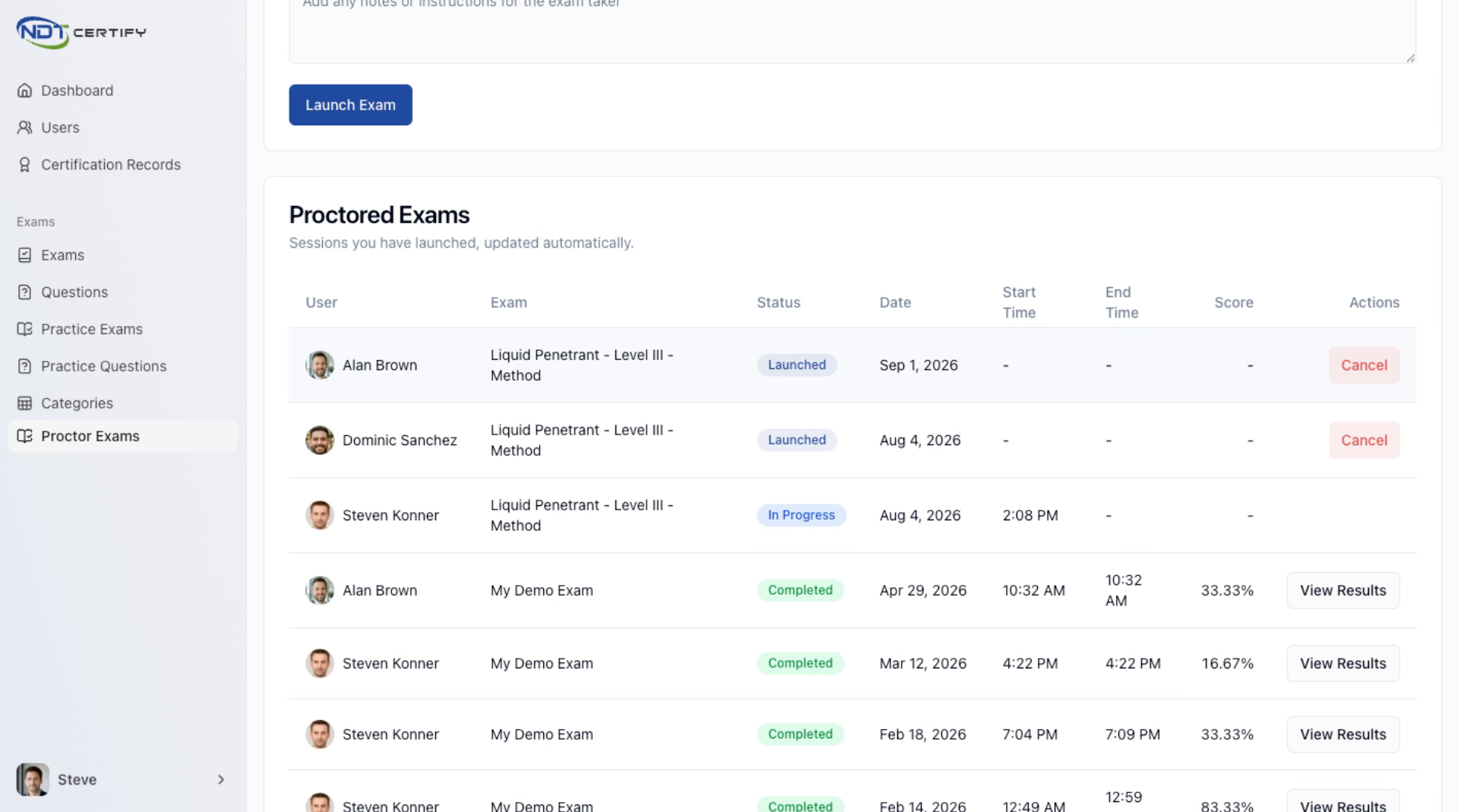
Include standards or documentation notes, then click Launch Exam to start the proctoring session.
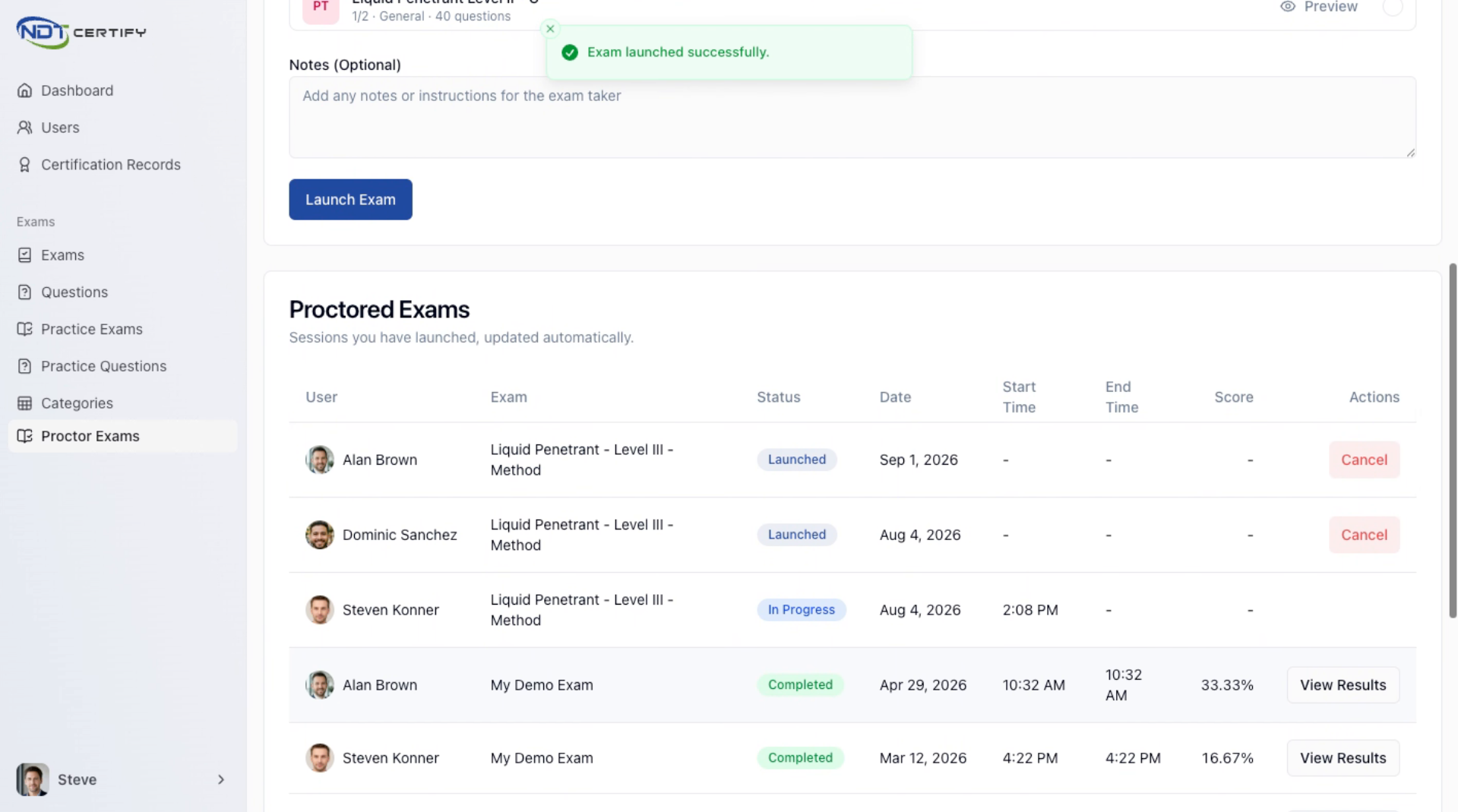
- 12
View Exam Status List
Scroll down to see all exams with their current status, such as launched, in progress, or completed.
- 13
Understand Exam Launch Notification
Launching an exam sends an email notification prompting the personnel to log in and begin the exam.
Questions about proctoring exams?
Our team is happy to walk you through selecting personnel, choosing an approved exam, and launching a session.
Contact Support